- Difference between native adjustment of integrated displays and the need for external tools for independent monitors.
- Use of the DDC/CI protocol to allow software to modify the actual brightness of the hardware.
- Alternatives using third-party software to manage multiple screens from a single interface.
- Adjustments through control panels of graphics card manufacturers such as NVIDIA, AMD, and Intel.
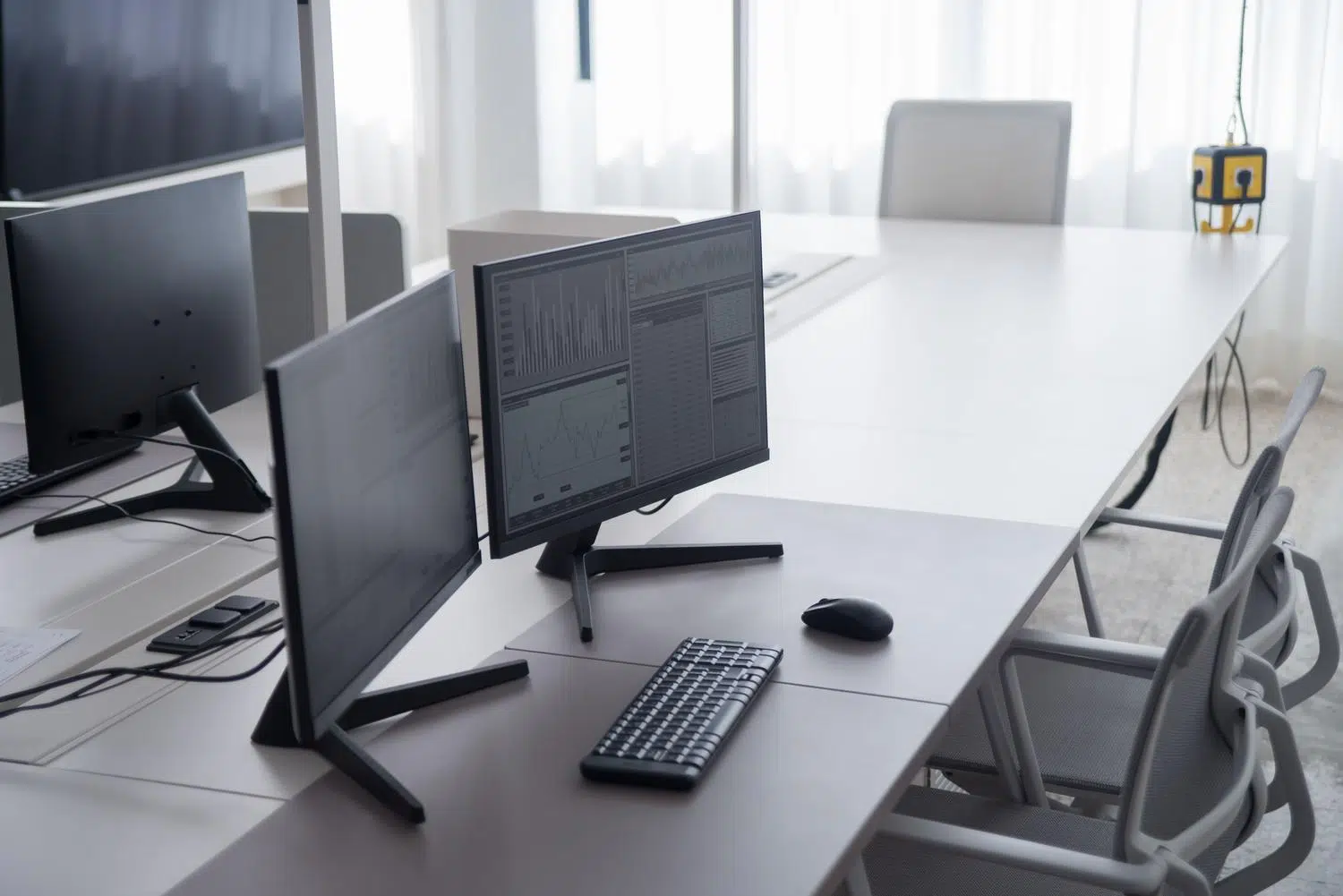
If you've ever felt like Windows leaves you a bit stuck when trying to lower the brightness of your external monitor, you're not alone. While it's a breeze on laptops thanks to the built-in slider, things change when you connect an extra monitor, and suddenly you're forced to juggle the monitor's physical buttons , which can be a real headache.
The good news is that there are much more convenient ways to manage this without having to get up from your chair. Depending on your hardware and what you're willing to install, you can go from struggling with the OSD menu to controlling your desktop lighting with a simple click or keyboard shortcut, thus improving your eye health and preventing eye strain after hours of work.

Windows native options and limitations
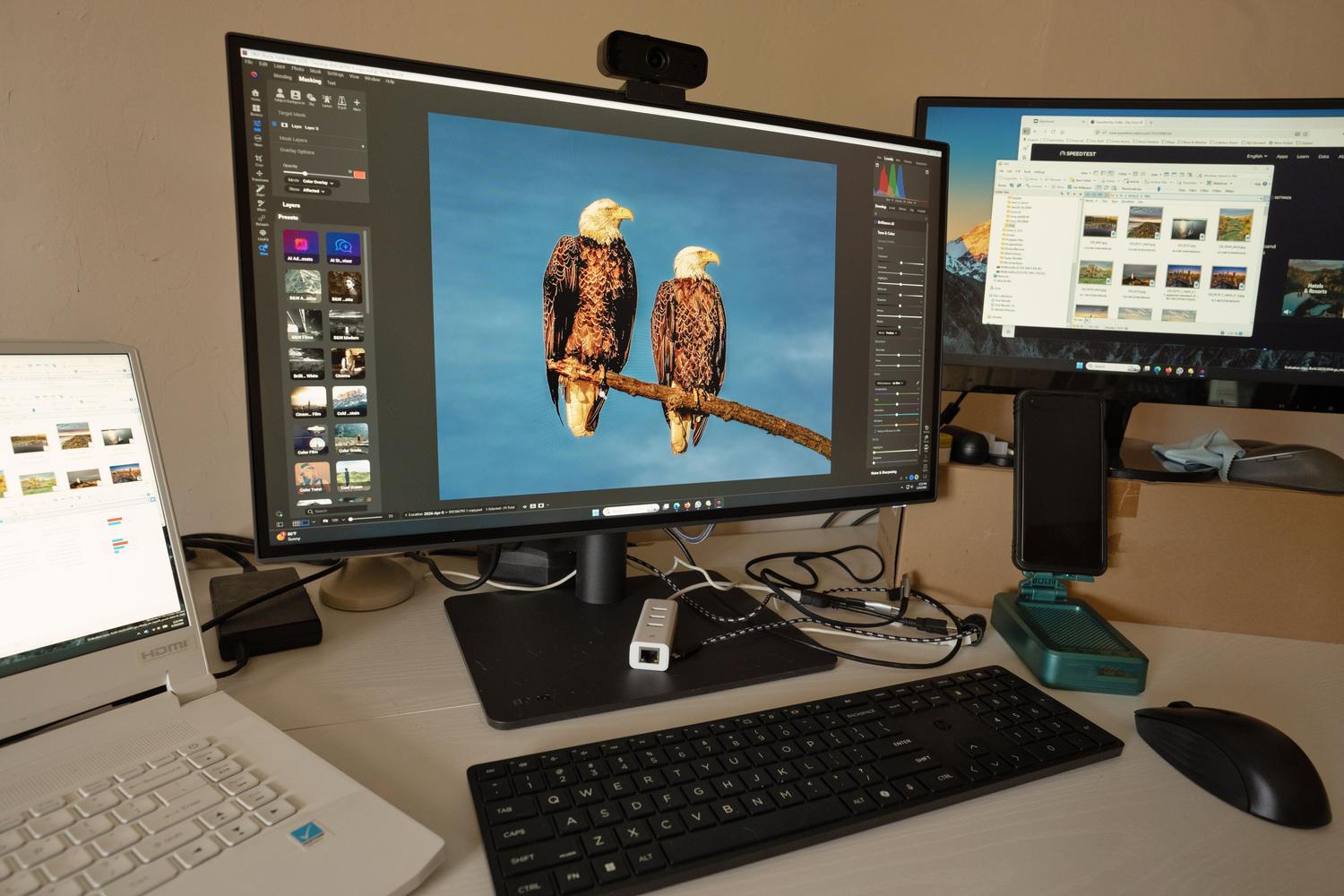
It's important to understand that Windows is designed to manage the brightness of the built-in display. Therefore, if you look in the Action Center or go to Settings > System > Display , the slider for your external monitor is likely not there. This happens because the system can't always communicate directly with external hardware.
Even so, there are some internal workarounds you could try. In some versions of Windows 10 and 11, if you go into the advanced display settings , you might find adjustment options, although this is quite rare and depends entirely on manufacturer compatibility. You also have the option of activating Night Light , which, while it doesn't lower the actual brightness, reduces blue light so you don't have trouble sleeping. You can schedule this according to sunrise and sunset times.
The secret of DDC/CI and third-party software
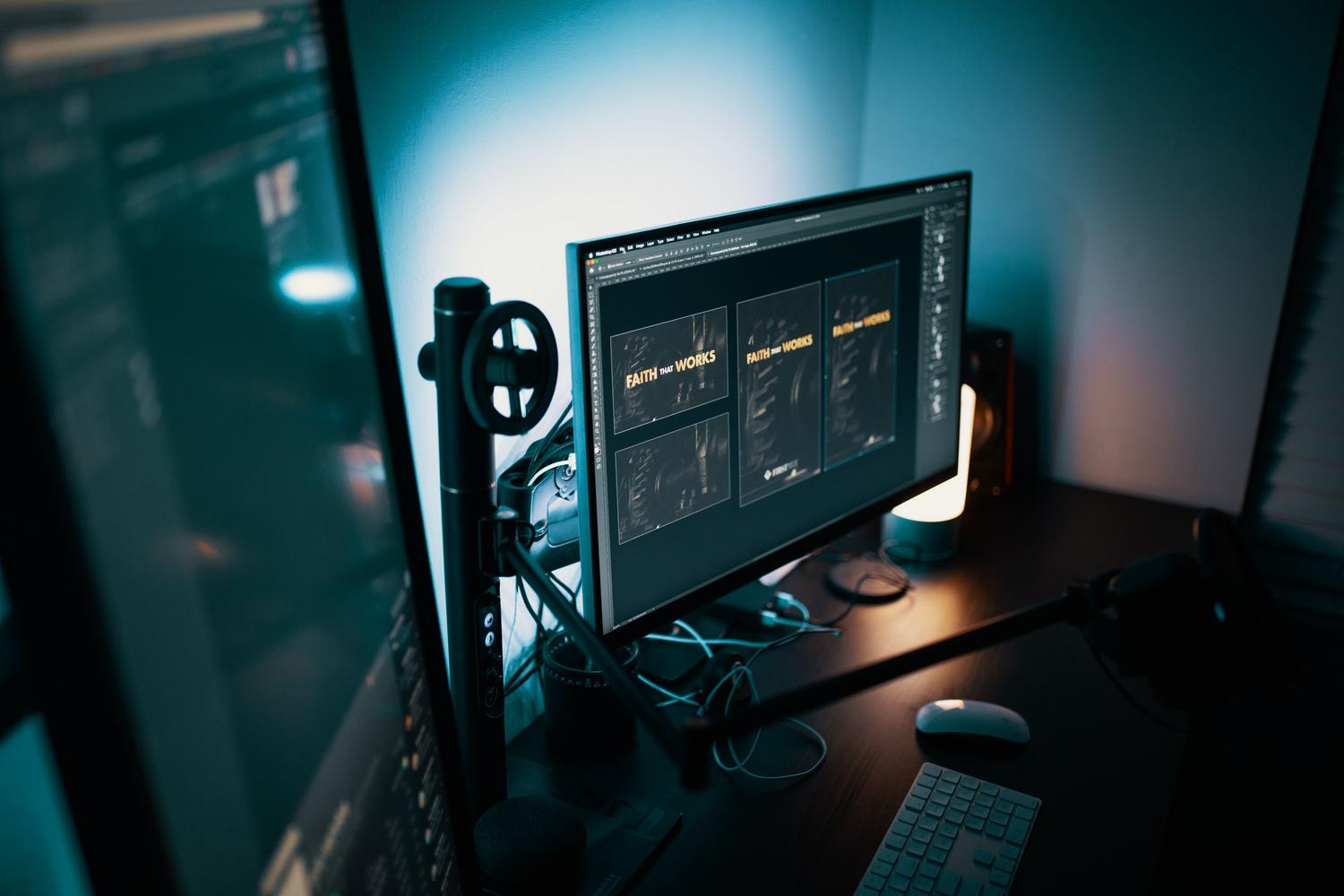

- Monitorian: It's probably one of the best options. It integrates into the system tray and allows you to adjust the true hardware brillianceIt is open source and allows you to manage multiple monitors at once, although some advanced features such as keyboard shortcuts may require payment in the Store version.
- Twinkle Tray: Very similar to the previous one, but with an interface that fits perfectly with the Windows aesthetic. It allows you to synchronize brightness of all your screens so you don't have one blinding and another dark, plus you can program levels according to the time.
- Dimmer: Unlike the previous ones, this one doesn't change the monitor's light intensity, but instead applies a digital filter Regarding the image: It's ideal if your monitor has a minimum brightness that's still too high for working in the dark.
- Win10 Brightness Slider: A simple and straightforward tool, available on GitHub, that adds an icon to the system tray for quick and easy adjustments.
Adjustments via the graphics card
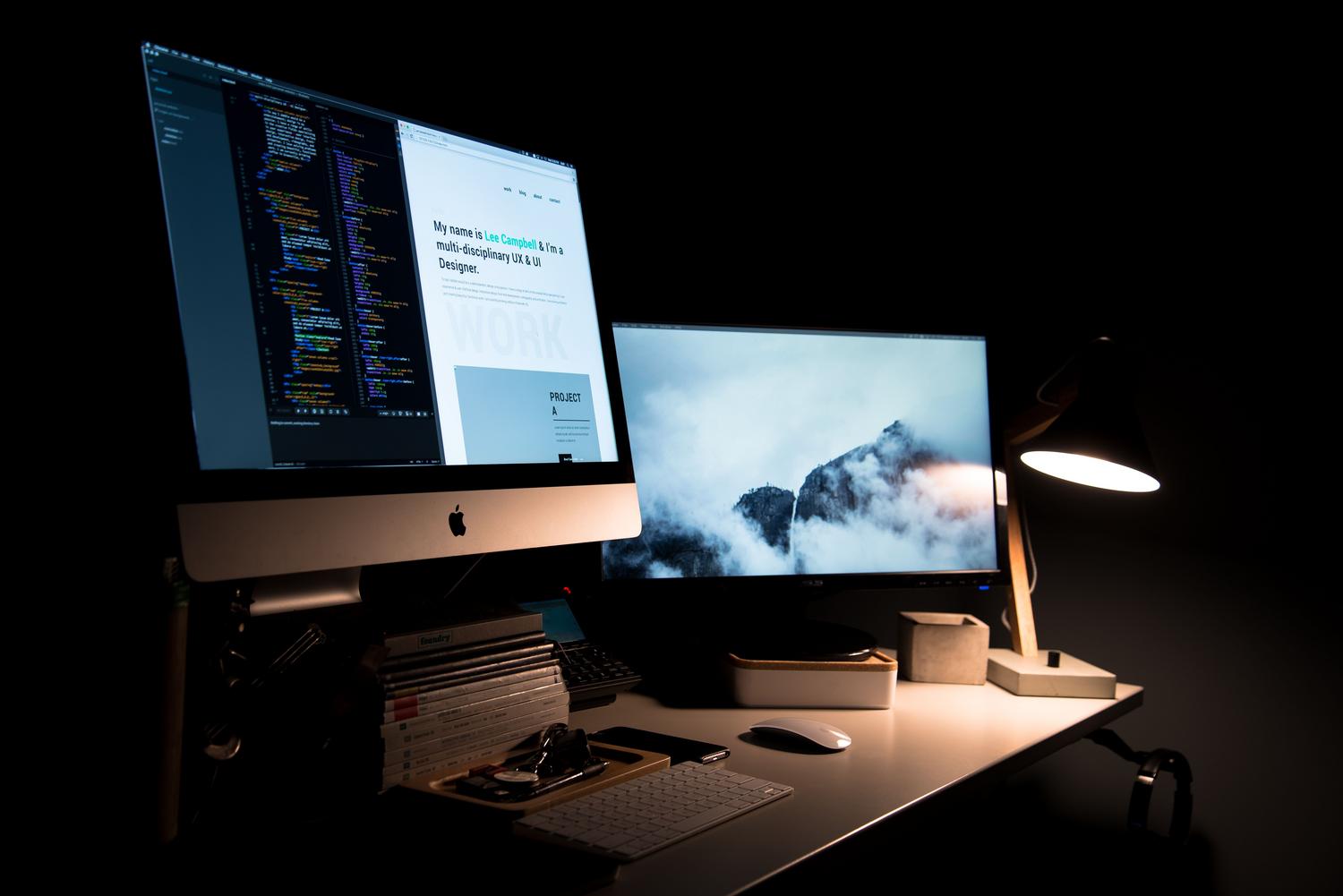
If you don't want to install unfamiliar applications, you can use the software that comes with your GPU. Manufacturers offer control panels where you can adjust color intensity and brightness via software, which is technically an adjustment of the video signal and not the monitor's backlight.
For NVIDIA users , simply right-click on the desktop, open the NVIDIA Control Panel, and navigate to the desktop color settings section. If you use AMD Radeon or Intel Graphics Command Center , the process is very similar: find the display or color tab and adjust the slider to your liking. These methods are very precise and are preferred by graphic designers seeking accurate color calibration.
Tips for optimal setup
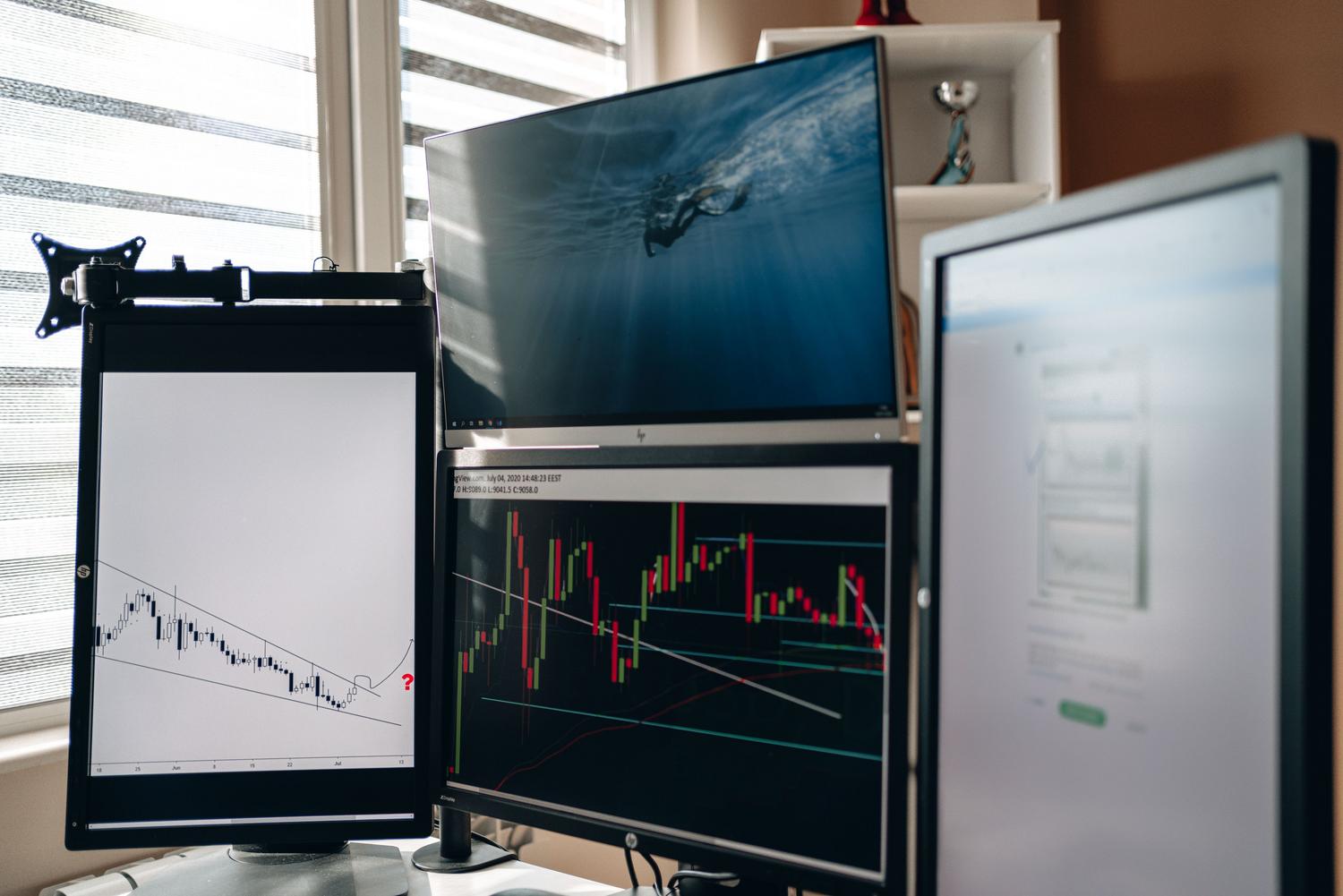
To prevent eye strain, ideally your monitor's brightness should be balanced with the ambient light in the room. If you're working in a brightly lit environment, increase the brightness; but if you're in dim light, lowering it will significantly reduce eye fatigue . Don't forget to update your graphics card drivers from the official website, as this sometimes unlocks power management and display options.
If you have a multi-monitor setup, try using tools that allow custom profiles . This way, you can have one configuration for gaming, another for video editing, and a dimmer one for browsing the web before bed, thus optimizing energy consumption and extending the lifespan of your screen panels.