- Microsoft extends automatic activation of High-Visible Memory Integrity (HVCI) to computers running Windows 11 25H2 and 26H2 through updates KB5127936 and KB5132061.
- The cited tests recorded performance drops of around 5% and up to 10% in some games, although another measurement observed an impact of less than 3%.
- The feature may conflict with anti-cheat solutions, and Windows may disable it automatically if an incompatible driver blocks booting.
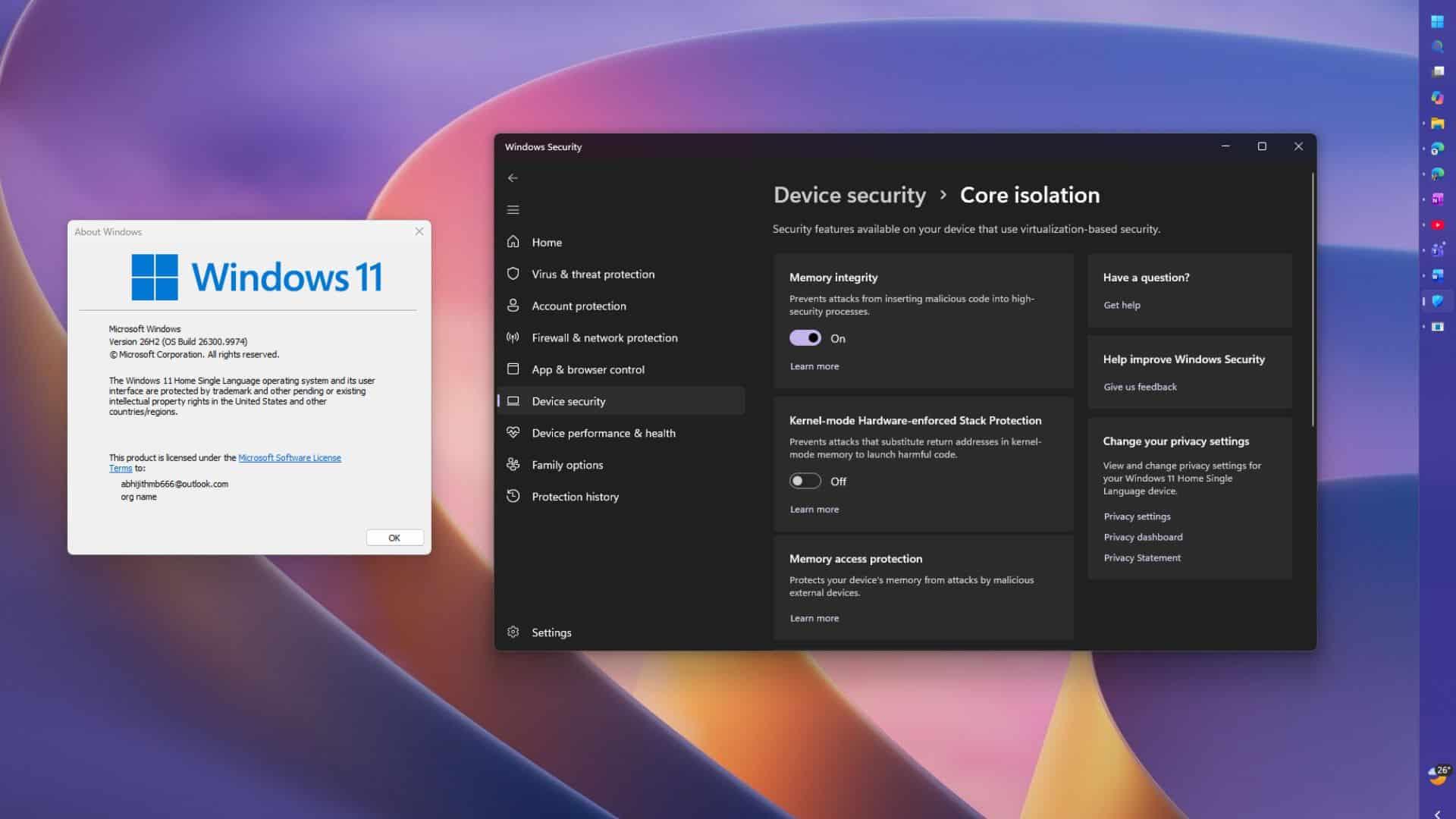
- It is checked in Windows Security > Device Security > Kernel Isolation Details, where the user can disable it.

Microsoft has expanded the automatic activation of memory integrity, also known as High-Visibility Memory Integrity (HVCI), to compatible systems running Windows 11 25H2 and 26H2 . The change arrived with the October and November 2026 updates, identified as KB5127936 and KB5132061, and aims to isolate security checks from the operating system kernel.
The measure doesn't reach all computers at once. Windows checks hardware, driver compatibility, and performance before enabling the protection, and IT administrators retain priority over the configuration. For gamers, the move raises a question: how many frames does this layer of security cost?

What is memory integrity and why is it being enabled now in Windows 11?
Memory integrity, technically known as hypervisor-protected code integrity, uses virtualization-based security (VBS) to create an isolated environment within Windows . The hypervisor separates certain security checks from the rest of the system, preventing a compromised kernel from executing unvalidated code. This feature wasn't introduced with Windows 11; Microsoft incorporated it with Device Guard, and businesses have been able to enable it since the release of Windows 10 in 2015.
In September 2022, the company announced that it would be enabled by default on new devices with Windows 11, although the documentation specified that this applied only to clean installations. Now the rollout extends to upgraded devices as well, not just newly configured ones. Peter Waxman, a Microsoft employee, defended the measure: "Security works best when protection is built in, not added on."
How much performance do games lose with memory integrity?
Microsoft warned back in 2022 that memory integrity and the virtual machine platform could impact performance in some game scenarios and configurations. The guide recommended disabling both features while playing and re-enabling them afterward; the article is no longer available on the support page, though it can be found in the archives. The company also noted at the time that some gaming PCs might be sold with the feature disabled.
Available measurements don't allow us to speak of a universal performance drop. A 2021 test with an 11th-generation Intel processor measured an average performance decrease of around 5%, and a repeat test in 2023 with a Core i9-13900K and an RTX 4090 recorded around 5%, with some cases reaching up to 10% . Another measurement observed an impact of less than 3%. Results vary depending on the hardware, the game, and the settings.
The latest hardware reduces some of that burden. Microsoft says the feature works best on Intel Kaby Lake (7th generation) or later processors and AMD Zen 2 or later, thanks to technologies like MBEC on Intel and GMET on AMD. Systems that qualify for automatic activation need at least an 8th generation Intel or an AMD Zen 2 processor ; earlier processors must emulate those features and may cost more.
Problems with anti-cheat and what to do if a game crashes
Compatibility isn't just about frame rates. Microsoft's driver compatibility page includes anti-cheat solutions used by games among the programs that have experienced memory integrity issues. The material doesn't identify specific titles, so it's best to observe how each configuration behaves and not assume that all games will crash.
If a computer crashes during startup shortly after enabling the feature, possibly due to an incompatible driver, Windows may automatically disable it again . The practical recommendation depends on the specific experience: if games and peripherals work fine, it makes sense to keep the protection active; if performance or compatibility issues arise, the user can try toggling the switch.

How to check and disable memory integrity in Windows 11?

Checking the status is simple. Open Windows Security, go to Device Security, and select Kernel Isolation Details . The Memory Integrity switch will appear there. You can also access it from Settings > Privacy & Security > Device Security > Kernel Isolation.
- Press Windows + I to open Settings.
- Go to Privacy and security and then to Device security.
- Select Core Insulation Details.
- Check the Memory Integrity switch and replace it if necessary.
The support schedule adds another nuance. The Home and Pro editions of Windows 11 24H2 stopped receiving updates on October 13, 2026, while Enterprise and Education continue to receive security updates until October 12, 2027.
Before disabling it due to speed issues, it's worth checking if there's a measurable difference . In video games, you can compare the number of FPS under the same conditions, keeping the resolution, graphics settings, and open applications the same. Disabling the feature removes a barrier against threats seeking to access critical components, while keeping it enabled maintains the protection recommended by Microsoft. Those who had already manually disabled it should not see it reactivated due to this change.
The expansion of memory integrity coincides with Microsoft's promise to make Windows the best place to game by 2026. The feature operates similarly to how it did in 2022; the difference is that it now supports more systems, and each user retains the toggle switch to adjust the balance between security and frame rate.