If you've ever wondered what's really going on under the chassis of your computer or felt a little lost when shopping for a new machine, you've come to the right place. Let's take a deep dive into the technological framework for both desktop and laptop computers, going into detail but without overwhelming you with impossible technical jargon, so that anyone, even those with no computer knowledge, can understand how their device works.
It is essential to understand that, although a desktop and a laptop share the same basic characteristics, a laptop is essentially a optimization exercise Extreme. With everything so tightly packed, energy consumption must be much lower, and temperature control becomes a critical challenge. Mastering these differences will help your equipment last longer and prevent you from being misled by technical specifications.
The fundamentals: the flow of information
To understand how hardware works, you first need to understand the communication between components. Everything we do, from writing an email to playing a video game, becomes bit streams (zeros and ones), which represent simple electrical states. At the heart of the processor, millions of transistors act as switches that manage this flow of data.
We often get confused with storage units. A byte is eight bits, and from there we jump to kilobytes, megabytes, and gigabytes. An interesting detail is that each jump multiplies by 1024, not 1000, which is why There are discrepancies on the hard drive labels. Also, it's vital not to confuse bytes (B) with bits (b); if you see a speed of 10 Mb/s, remember that it's eight times slower than 10 MB/s.
We also need to talk about frequency, measured in hertz (Hz). If your chip runs at 3,5GHz, it can technically perform 3.500 billion cycles per second. However, don't rely solely on that number, as the chip architecture and temperature directly influence the number of instructions that are actually executed.

Anatomy of a laptop
A laptop is a technological marvel where the motherboard, CPU, RAM, and graphics card coexist in a minimal space. Unlike desktop towers, many components are integrated into a single unit. soldered to the plateThis means that if you buy the wrong model, you won't be able to easily upgrade it. That's why it's advisable to carefully review the specifications. Hardware guides for laptops and computers before parting with the money.
- Processor (CPU): It's the brain of the computer. Low-power versions are used in laptops to conserve battery life. These chips include an arithmetic logic unit (ALU) for calculations and a control unit, in addition to cache memories (L1, L2, L3) to save the most frequently used data and increase speed.
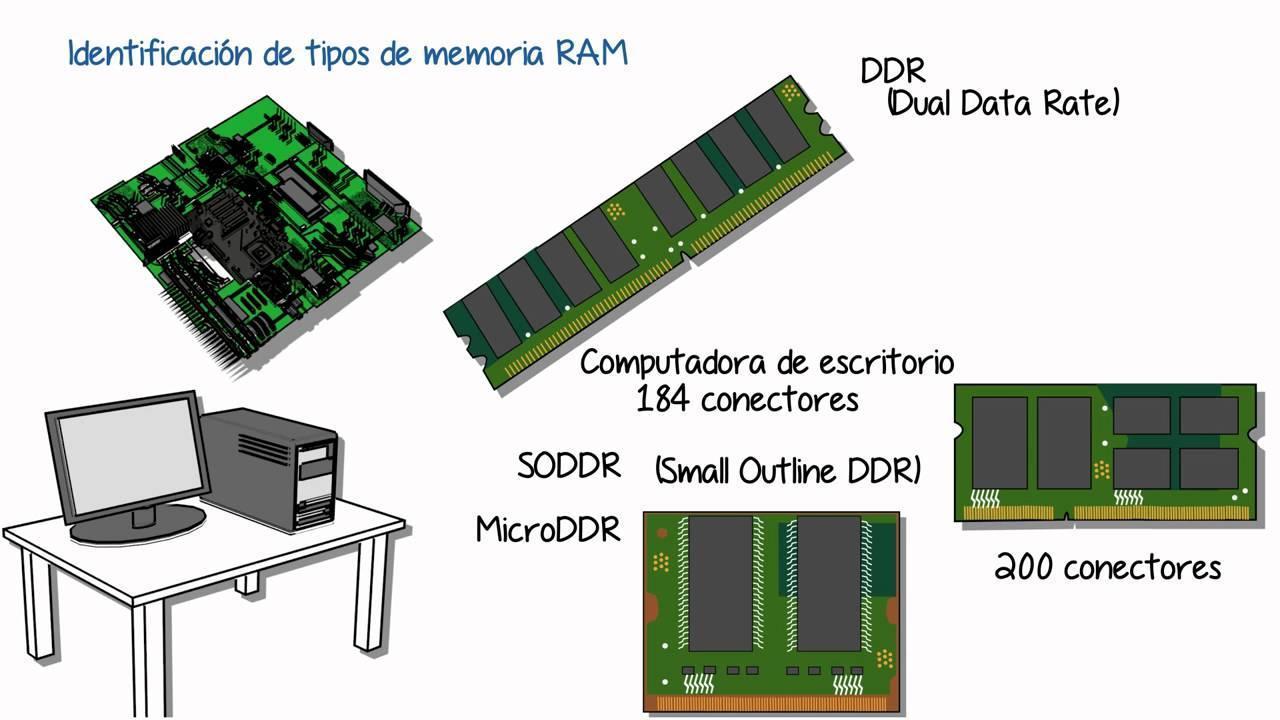
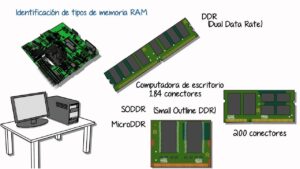
- RAM: It acts as the immediate workspace. If the CPU is the worker, the RAM is the table where the papers are open. For basic tasks, 8GB is enough, but for gaming or video editing, 16 GB is the minimum Recommended. Be careful with the LPDDR format, as it often comes soldered.
- Storage: Mechanical HDDs are now prehistoric. SSDs rule, divided into SATA (slower) and NVMe via PCIewhich are real rockets. A 512 GB hard drive is ideal nowadays, although 1 TB is best for large files.
- Graphics Card (GPU): It can be integrated, sharing RAM with the processor, or dedicated, with its own VRAM memory For demanding tasks. Modern equipment automatically switches between both modes to save energy.
- Battery: It is measured in watt-hours (Wh). To prevent degradation, it is best to avoid excessive heat and not always leave it at 100% connected to the charger or completely drained to 0%.
The structure and thermal control
The motherboard coordinates the entire system. In laptops, it's very compact and determines the number of USB ports or the SSD speed. data buses These are the highways on which bits travel; if the bus is narrow, a bottleneck is created even if the processor is powerful.
We also can't forget the BIOS or UEFI, the basic firmware stored on a ROM chip. If the computer starts losing the time or settings, it's very likely that the battery of the plate may have run out and need replacing. The biggest enemy here is the heat, which is combated using heat pipes and fans.
When the system detects that the temperature is excessive, the so-called throttlingThis is an automatic speed reduction to prevent the equipment from overheating. Keeping the vents dust-free is the best way to prevent your PC from suddenly slowing down, by following a good maintenance routine. PC hardware analysis for prevention.
Step-by-step guide to building a desktop PC
Building your own tower is a fantastic and much cheaper experience. All you need is a Phillips screwdriver, cable ties, and, to be on the safe side, antistatic gloves to avoid contaminating the circuits. The first step is to prepare the tower, remove the covers, and place the I/O shield on the rear ports.
The first big step is working with the motherboard out of the box, resting it on its cardboard. We install the processor, making sure the corner mark aligns with the one on the socket. Then, we place the NVMe M.2 SSDbecause it's much easier to screw it in now than when the board is already inside the chassis.
Next, we install the heatsink. If it's an air cooler, we do this now; if it's an AIO liquid cooler, we leave the brackets in place and finish the installation later. Finally, we fit the RAM modules until they are fully inserted. hear the click characteristic.
With the motherboard ready, we insert it diagonally into the case and screw it in. Then we carefully connect the front panel cables (power, USB, audio). Do not bend the pinsThe power supply is the next step; if it is modular, it is best to connect the cables first and then insert the power supply, securing the 24-pin ATX cable with cable ties.
The final touch is the graphics card. Remove the case covers, insert it into the PCIe slot, and screw it in firmly, remembering to connect the PCIe power cables specifics that come from the source.
Critical advice and final reviews
Static electricity is the silent killer. To prevent a cold shock from damaging your cooktop, wear an anti-static wrist strap or touch an unpainted metal object. Always work on wood or plastic. avoiding carpets or fabrics that generate friction.
When applying thermal paste, remember that less is more. A small dot in the center is enough; if you use too much, the paste can overflow and cause a short circuitAdditionally, using a magnetic screwdriver prevents any screws from getting lost on the motherboard.
Before the first power-on, check that the RAM is properly secured and that no cables are touching the fans. Make sure the power supply switch is in the 'I' position. If it doesn't start on the first try, don't panic, as this is usually a simple issue. Nonsense like a module RAM not properly seated.
Mastering hardware concepts, from the difference between an NVMe and a SATA SSD to the correct use of thermal paste, allows you to take complete control of the technology. Whether optimizing a laptop's RAM to avoid virtual memory or designing a custom tower, the key lies in... be methodical and don't force it the connections to ensure that the equipment performs at its best for years.