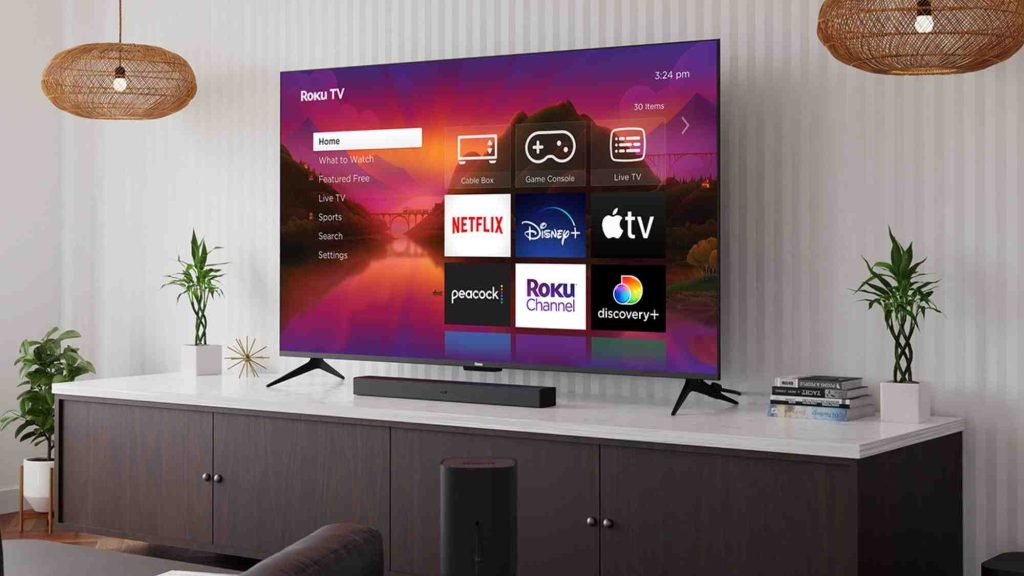
Solutions for your Smart TV on!
If you are one of those who has invested in a Smart TV to enjoy the best content in the comfort of your home, you have surely encountered some setbacks. One of the most common problems is when the TV turns on and gets stuck on the brand logo, without continuing to the main menu. This situation can be frustrating, but don't worry, we have the solutions you need to solve this problem!
First, it's important to understand that this problem can have several causes, so the solution may vary depending on your TV model and brand. However, there are some general steps you can take to try and fix this common issue. In many cases, this problem can be resolved simply by restarting the TV. To do this, unplug the TV and let it sit for a few minutes. Then, plug it back in and turn it on. This restart can help clear any temporary glitches that might be preventing the TV from progressing beyond the initial logo.
If restarting doesn't resolve the issue, you can try performing a factory reset on your Smart TV. This option will restore all settings to their factory defaults and might fix the problem. However, keep in mind that doing this will erase all data and settings stored on your TV, so we recommend backing up your important information before proceeding. To perform a factory reset, access your TV's settings menu and look for the appropriate option. This option may be located in the "Settings," "Options," or "Advanced Settings" section.
If none of these solutions work, you may need to contact your Smart TV brand's customer service or take it to an authorized service center. Specialized technical support will be able to diagnose and resolve the problem properly. Remember to have your TV's information handy, such as the model, serial number, and any other relevant details that might help expedite the customer service process.
In short, if your Smart TV turns on but gets stuck on the brand logo, there are several solutions you can try. Resetting the TV, performing a factory reset, or contacting customer service are some of the possible options. Remember that each television may have different specifications, so we recommend following the specific instructions for your brand and model to achieve the best result. Don't miss the opportunity to enjoy your Smart TV and solve this problem right now!
1. Possible causes of the Smart TV turning on and staying on the logo
If your Smart TV turns on but gets stuck on the startup logo, it can be frustrating and worrying. However, there are several possible causes for this common problem. Here we are going to mention some of them to help you identify and solve the problem.
1. Software incompatibility: Sometimes, the TV and the software version are incompatible, which can cause it to get stuck on the logo. This can happen after a software update or if there's a conflict with another application running in the background. In such a case, you can try a soft reset of the TV to reset the software and fix the problem.
2. Outdated Firmware: If you haven't updated your TV's firmware in a long time, it may be outdated and causing startup problems. Make sure your Smart TV is connected to the internet and check if a firmware update is available. If so, download and install the update to fix any boot-related issues.
Remember, these are just some of the possible causes. If none of these solutions work, it may be necessary to contact the manufacturer or take the television to a specialized technical service for a more thorough inspection.
2. Solutions to solve the problem of the Smart TV that gets stuck on the logo
Problems with the Smart TV that gets stuck on the logo? Don't worry! Here we present some simple solutions to solve this problem and enjoy your television in full operation again.
1. Restart your Smart TV: The first step to solve this problem is to restart your television. To do this, simply turn off the device and disconnect it from the electrical outlet for at least 30 seconds. Then plug it back in and turn it on. This will usually reset the TV and allow it to boot up correctly, avoiding getting stuck on the logo.
2. Update your software: Sometimes, this issue can be caused by outdated software. To fix this, make sure you have the latest version of the operating system installed on your Smart TV. You can do this by going to your TV's settings and looking for the "Software Update" or "Firmware Update" option. If an update is available, follow the instructions to download and install the new version. This may fix any bugs or conflicts that are preventing your TV from starting properly.
Always remember to check the manufacturer's documentation or seek specialized technical assistance before attempting any solution on your own. By following these simple steps, you can probably solve the problem of your Smart TV getting stuck on the logo and enjoy your favorite shows and movies again without any problems. If the problem persists, do not hesitate to contact the manufacturer's technical support or take the TV to an authorized technical service for a more advanced solution.
3. Recommendations to restore normal operation of a stuck Smart TV
If you have a Smart TV and have encountered the annoying situation of it getting stuck on a screen or the startup logo, don't worry, here are some simple solutions that could restore its normal operation.
1. Manual reset: In case the TV becomes completely stuck and does not respond to remote control commands, you can try performing a manual reset. To do this, find the power button on the TV and hold it for at least 10 seconds until the TV turns off. Then turn it back on and check if the problem still occurs.
2. Power disconnect: Another strategy you can try is to disconnect the TV from the electrical power. Turn off the TV, unplug it from the outlet, and wait about 1 minute before plugging it back in. This process can help reset any incorrect settings or power flow that may be causing the sticking issue.
4. Tips to solve common problems with Smart TVs that stay on the logo
Today, Smart TVs are an essential part of our lives, allowing us to enjoy a wide variety of content from the comfort of our homes. However, they can sometimes experience issues that prevent us from fully enjoying the experience, such as getting stuck on the startup logo. But don't worry, because in this article we'll give you helpful tips to solve this problem quickly and easily.
One of the first steps you should take is to unplug your TV from the power outlet for a few minutes. This will allow it to restart and may resolve any temporary issues. Then, plug it back in and turn the TV on. If the problem persists, you can try performing a factory reset . To do this, look in the settings menu for the option "Restore factory settings" or "Reset defaults." Keep in mind that performing a factory reset will erase all your settings and custom configurations, so it's important to back up any information you don't want to lose.
5. Useful tools and resources to fix the problem of a Smart TV that does not go beyond the logo
Possible causes of the problem
There are several reasons why a Smart TV may get stuck on the logo when turning on. Some of the possible causes could be an error in the operating system, problems with the internal memory, conflicts with an application or an incomplete or incorrect software update. It is also possible that there is some hardware failure, such as a problem with the main board or internal cables. It is important to take all these possibilities into account in order to find the best solution.
Useful tools and resources to solve the problem
Below we have provided you with some tools and resources that could be helpful when trying to fix a Smart TV that won't get past the logo. Always remember to review your television's user manual before taking any action.
1. Restart the TV: In many cases, simply restarting the device can fix the problem. You can do this by unplugging the TV from the power supply and turning it back on after a few minutes.
2. Safe mode: Some Smart TVs have a safe mode that allows you to start the device with default settings. This can help identify and fix potential problems caused by custom applications or settings.
3. Update software: Check if a software update is available for your TV and install if necessary. This can fix any errors or compatibility issues that are causing the logo to get stuck.
4. Factory reset: In case none of the above solutions work, you may need to reset the TV to factory settings. Please note that this will delete any settings or personal data stored on the TV, so it is important to make a backup before performing this process.
5. Contact technical support: If none of the above resolves the problem, it is advisable to contact the manufacturer's technical support for additional assistance. They will be able to provide you with specific guidance for your TV model and help you troubleshoot the problem.