- Windows 11 26H2 improves responsiveness by up to 20% in actions such as Start, Search, or File Explorer.
- Multitasking on computers with 8 GB of RAM is up to 40% faster in Microsoft's internal test.
- The system keeps up to 2 GB more active data in memory and reduces memory growth in multitasking by up to 900 MB.
- For Copilot+ PC and heavy tasks, Microsoft still requires or recommends 16 GB of RAM.
Windows 11 has released an update that aims to make computers with 8GB of RAM no longer the underdog. Microsoft claims that version 26H2, from build 26300.9818 onwards, improves responsiveness in common tasks by up to 20% and makes multitasking up to 40% faster on systems with that amount of memory.
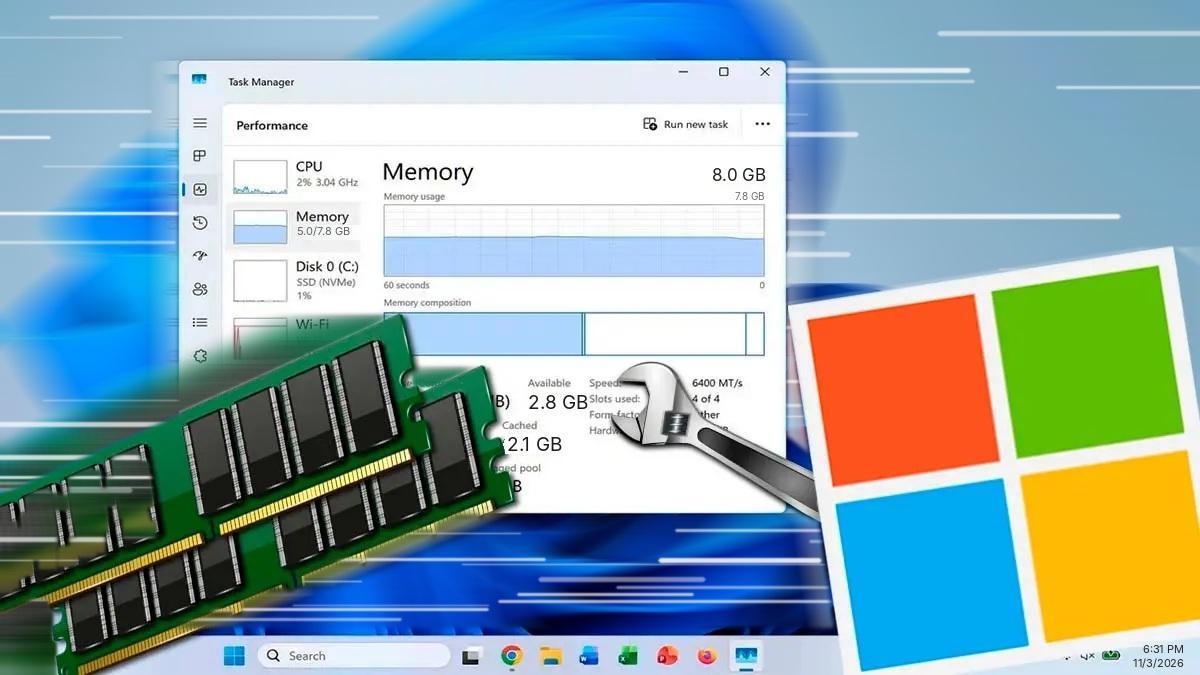
The announcement comes at a time when RAM has become more expensive due to demand from artificial intelligence data centers. This context has led manufacturers to bring back 8GB configurations that seemed destined to disappear. Microsoft's proposal is that the system reduce its RAM consumption on computers with 8GB : according to the company, Windows can keep up to 2GB more active data in memory instead of sending it to slower storage.

What improvements does Windows 11 offer on computers with 8 GB of RAM?
The update focuses on three areas: making better use of available memory, prioritizing interactions that should feel immediate, and reducing the resource consumption of Windows and key applications. In practice, Microsoft reports up to a 20% improvement when opening Start, Search, right-clicking, Settings, the Snipping Tool, or a File Explorer window. This comparison is against the January builds.
To achieve this, the system temporarily prioritizes user operations and reduces the activity of background processes, such as search indexing. Memory compression and paging have also been adjusted, so open applications and tabs tend to reload less when you return to them. This is the basis for the improvement with 8 GB, although Microsoft acknowledges that a PC with 16 GB or 32 GB can handle a heavier workload.
Multitasking and saving: up to 900 MB less in tests
The most striking statistic is the 40% increase in multitasking speed . Microsoft measured this on an HP OmniBook 3 equipped with a Snapdragon X Plus processor and 8GB of RAM, opening 20 Edge tabs, a 4K video, large Word, PowerPoint, and Excel documents, Outlook, and File Explorer. The company compares the result to January builds and clarifies that this is an internal test, not a general benchmark.

In terms of memory, combined optimizations from Windows, Edge, and Microsoft 365 reduce the growth of committed memory by up to 900 MB during certain multitasking tests. Of that amount, approximately 360 MB are attributed to Word, PowerPoint, Excel, and Outlook. On computers with 8 GB or less of RAM, widgets only load when opened and free up about 200 MB while closed.
Edge also introduces changes: it opens up to 33% faster when leveraging a background process and suspends inactive tabs after 15 minutes, compared to the previous two hours. Teams activates its efficiency mode by default on computers with 8 GB of RAM, resulting in up to 20% faster opening times. These adjustments are designed to reduce lag for users when switching between tasks.
Who needs 8 GB and when is it advisable to upgrade to 16 GB?
With these improvements, an 8GB laptop remains a reasonable option for browsing, office applications, studying, streaming, or managing email . This is the profile Microsoft describes as everyday use, explaining why 8GB "fits very well" into that routine. However, the company hasn't changed its recommendation for demanding tasks: 16GB or 32GB are still preferable for video editing, 3D modeling, or working with large volumes of data.
There's a clear boundary: Copilot+ PC features require a minimum of 16 GB of RAM , in addition to compatible hardware. That's why two computers with similar processors can offer different experiences depending on their memory. Pavan Davuluri, head of Windows, sums it up this way: "Workload still matters, and a PC with 16 GB or 32 GB can handle more. But with these changes, we're ensuring you can do more, even with 8 GB."
How to update Windows 11 and check for version 26H2
The improvements arrive with Windows 11 version 26H2 , build 26300.9818 or later, along with updated versions of Edge, Microsoft 365, and Teams. To test it on a computer with 8 GB of RAM, follow these basic steps:
- Open Settings and go to Windows Update.
- Enable the option to receive the latest updates as soon as they are available.
- Click on Check for updates and install the Windows 11 26H2 lightweight update, build 26300.9818 or higher.
- Restart your PC and check the version with the command winver.
- Update Edge, Microsoft 365, and Teams, because some of the memory savings depend on their newer versions.
The upgrade won't transform a modest computer into a professional editing machine, but it can extend the lifespan of many 8GB laptops used daily. The key is to ensure the build is installed and to keep the most memory-intensive applications updated.

