- Windows File History will stop creating copies after the September 2026 updates.
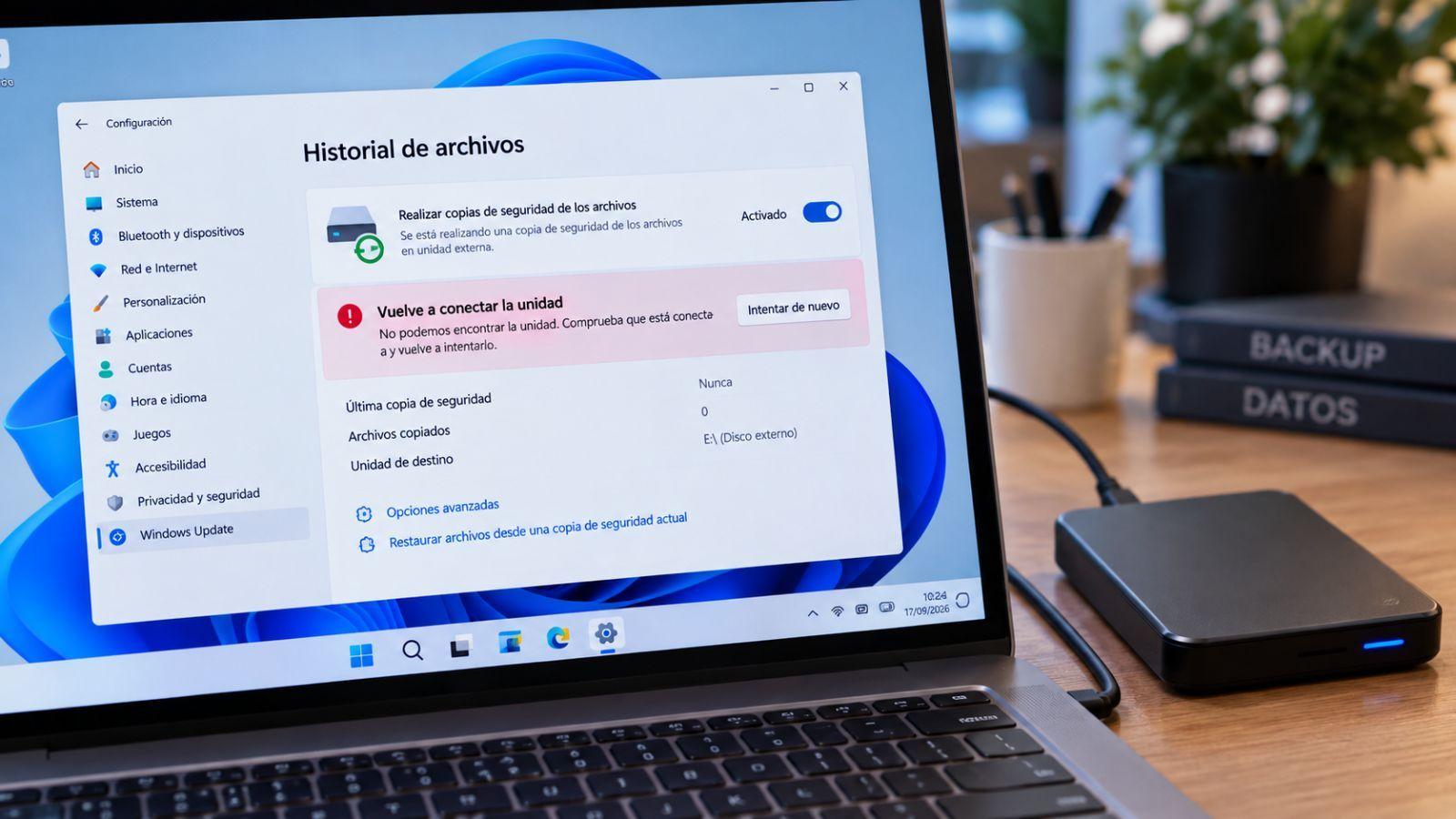
- The message “Reconnect the drive” appears even though the disk is not disconnected.
- It affects Windows 10 and 11 in multiple versions, including 25H2.
- Microsoft recommends not uninstalling the patches and manually checking the copies.

The problems with Windows 11 updates seem endless. The latest security patch, released in September 2026, has brought a new headache for those who rely on File History, the built-in tool that saves versions of your documents to an external drive or the network. The worst part is that the flaw goes unnoticed until you try to recover a modified or deleted file.
Microsoft has officially acknowledged that some computers, after installing the September security updates, stop creating or updating File History backups. The most visible symptom is a message asking you to reconnect the drive when, in reality, the disk is still connected and functioning. But there are other signs worth knowing so you don't get a nasty surprise when you need it most.


The tool, which has been available since Windows 8, automatically saves versions of your personal folders (Desktop, Documents, Pictures, etc.) to an external drive or a shared folder. Following the security updates of September 8, 2026, many users have experienced the date of the last backup freezing and previously backed-up files losing their earlier versions. Errors related to FileHistory.exe and KERNELBASE.dll appear in the Event Viewer, indicating that the process is failing.
The reconnection notification is the most misleading because it suggests the disk has disconnected, but in reality, it's still accessible. Reconnecting it won't solve anything , since the problem originates in the operating system, not the hardware.
The affected versions are not limited to Windows 11. They extend to Windows 10 and Long Term Support (LTSC) editions. Reportedly, the problematic updates include KB5124012 for Windows 11 26H1, KB5124008 for 25H2 and 24H2, KB5122880 for 23H2, and in the case of Windows 10, KB5122878 for 22H2 and 21H2, as well as KB5122876 and KB5123099 for LTSC 2019 and 2016.

The first thing you should do is check the date of the last backup in File History. Go to Control Panel > System and Security > File History and look at the 'Last Backup' field. If it hasn't been updated for several days, even with the drive connected, you're likely experiencing the problem. You can also check if clicking 'Restore Personal Files' shows older versions or if there's nothing at all.
Don't rely on the mere presence of the drive in the file explorer, as the system recognizes it but doesn't write to it. The clearest sign is the reconnection message , which appears even when the drive is working.
Microsoft has not yet released a definitive fix for this vulnerability. The company has added the issue to its list of known issues and is working on it. The best course of action is not to uninstall security updates , as exposing yourself to newly patched vulnerabilities is a much greater risk than losing temporary backups.
Instead of removing the patches, you can manually back up your important documents to another storage device, recover deleted files from your PC if you've already experienced data loss, or even use alternative tools like FreeFileSync or Kopia, which work with snapshots. However, none of these will offer the same integration with File Explorer as File History, so you'll have to get used to another method of restoration.
In short, the File History vulnerability represents another setback for Windows users who relied on automatic backups. It affects a significant number of versions, manifests itself with the misleading reconnection message, and leaves files modified after September unprotected. Until Microsoft releases a permanent patch , the sensible course of action is to manually review backups and keep security patches up to date, however inconvenient it may be.