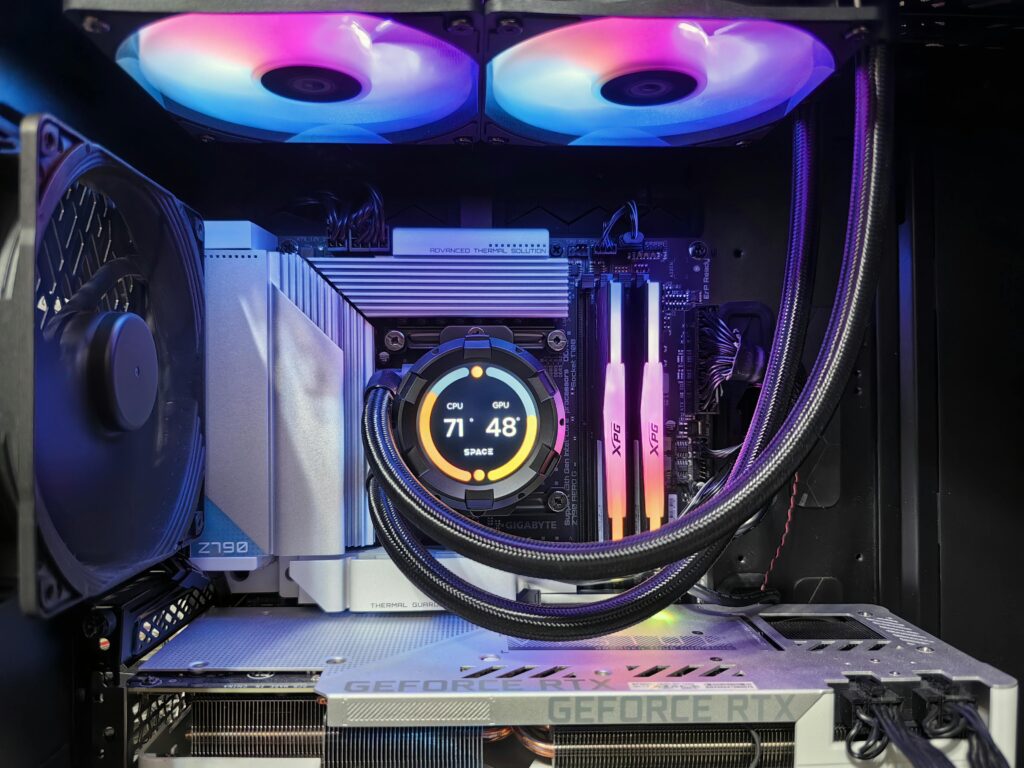
How to Monitor CPU Temperature
Un CPU temperature monitor allows users to verify the thermal performance of the processor, ensuring greater durability and efficiency in the operation of the equipment. This task becomes especially important in situations that demand high system performance, such as Gaming, video editing and other heavy applications.
Importance of Temperature Monitoring
La excessive temperature can irreversibly damage critical system components. Heat generated by the processor can affect performance and cause unexpected shutdowns. Regular monitoring helps prevent these problems and maintain the hardware in optimal conditions.
Methods for Monitoring Temperature
Use of Specific Software
There are multiple specialized programs that allow you to monitor CPU temperature. Some of the best-known include:
- HWMonitor – This free software provides real-time readings of temperatures, voltages, and fan speeds. It's highly reliable and compatible with almost any hardware system.
- Core Temp – Provides a detailed view of the temperatures of each individual CPU core. Its simple interface makes it easy to use for users without technical experience.
- AIDA64 – It's a paid program that offers a wide range of diagnostic and monitoring features, including CPU temperature. It's recommended for advanced users who require in-depth details about their hardware.
Using BIOS/UEFI
Some users prefer to monitor the CPU temperature directly from the BIOS / UEFI of the system. This method does not require installing additional software and offers a direct view of the thermal values during start-up phase of the System.
- Restart your computer and enter the BIOS/UEFI by pressing the specified key (usually F2, F10, DEL, or ESC).
- Navigate to the section hardware monitoring.
- Check the temperatures displayed.
Tools Integrated into the Operating System
In operating systems like Windows, there are tools that allow you to monitor the temperature of your hardware.
- Task Manager: Although its functionality is limited in terms of thermal details, it allows you to quickly review CPU usage and detect potential processes causing excessive heat.
- Windows PowerShell: With specific commands, it is possible to extract data on component temperatures, although this method can be complex and is aimed at advanced users.
External Monitoring Devices
For users who require extreme precision and constant visibility, the external monitoring devices are a viable alternative. These devices connect to the system and provide accurate, real-time readings, offering alerts in the event of critical temperatures.
Factors Affecting CPU Temperature
Quality of Thermal Paste
La thermal paste It's essential for efficient heat transfer between the CPU and the heatsink. A low-quality paste, or improper application, can significantly increase temperatures.
Cooling System Efficiency
Un proper cooling system is crucial. Heat sinks and fans must be able to handle the thermal load of the CPU. For intensive tasks, liquid cooling systems offer an advanced solution.
Case Ventilation
The structure of CASE and ventilation directly influence internal temperature. Adequate airflow helps dissipate heat, while a poorly ventilated case can attract and retain heat.
Procedures to Reduce Temperature
Updating Components
Update components such as the heat dissipator or adding additional fans can significantly improve cooling capacity.
Regular Hardware Cleaning
Dust and dirt can clog fans and heatsinks, reducing their efficiency. Regular cleaning is vital.
Hardware and Software Configuration
- undervolting: This involves reducing the voltage of the CPU to lower its temperature, although it can affect performance if not done properly.
- Process Control: Using task management applications to close unnecessary programs that are overloading the CPU.
How to Interpret Temperature Readings
Processors are designed to operate efficiently within a specific temperature range. There are three key values to be aware of:
- Idling temperature: When the system is not under high load, the CPU should maintain a low temperature.
- Temperature under load: During intensive activities such as gaming or video editing, temperatures will rise, but should not exceed the manufacturer's recommended values.
- Maximum temperature: Absolute value that must not be exceeded to avoid damage to the CPU. This value is usually specified by the processor manufacturer.
For Intel processors, the critical value is typically around 100°C, while AMD suggests not exceeding 95°C for its newer models.
Recommended Software
MSI Afterburner
Ideal for gamers and overclockers, MSI Afterburner Not only does it monitor temperatures, but it also allows you to adjust GPU and CPU settings to optimize performance and manage temperature.
SpeedFan
SpeedFan allows you to control the speed of the system fans, providing an efficient way to manually adjust cooling performance based on thermal needs.
Open Hardware Monitor
A free and open source alternative, Open Hardware Monitor provides a detailed view of various hardware components, including temperature, voltages, and fan speeds.
Conclusions
La CPU temperature monitoring It's a crucial aspect of maintaining the performance and longevity of computer hardware. By using specific software, tools built into the operating system, or external devices, users can ensure their systems operate within the recommended temperature limits, thus avoiding possible damage and ensuring an optimal user experience.