- Fundamental differences between the architecture of desktop computers and laptops.
- Detailed analysis of critical components such as CPU, RAM, and SSD storage.
- Step-by-step methodology for the safe assembly of a custom computer.
- Preventive measures against static electricity and optimization of cooling.
If you've ever stared at your computer tower wondering What on earth is in there? Or if you feel completely lost trying to buy new equipment without getting ripped off, you've come to the right place. You don't need to be a NASA engineer to understand how your machine works; the idea here is to get down to brass tacks using simple and direct language so that anyone can get the most out of their hardware.
It is essential to understand that, although a laptop and a desktop PC operate under the same logic, a laptop is basically a concentrated power where space and power management are critical. While a tower has plenty of room for airflow, a laptop is crammed in, making it a challenging environment. heat management in the determining factor for the equipment not to become slow or degrade prematurely.
Technological foundations: from electrical impulses to data
To start with the basics, a computer does not reason like a human being, but rather processes sequences of zeros and ones known as bits. These simple electrical states (current present or absent) are managed by millions of transistors in the CPU that act as switches. When we put eight of these bits together, we get a byte, which is the basic unit that allows us represent letters or symbols on the screen.
You've probably seen terms like gigabytes or terabytes in stores. One fact that often confuses people is that each jump multiplies by 1024 and not per 1000This can sometimes lead to confusion when reading the actual capacity of a hard drive. Furthermore, it is vital not to confuse the transfer speed in bytes (B/s) with the speed in bits (b/s), as the former is eight times faster than the second one.
Another concept you need to understand is frequency, measured in hertz (Hz). If you read that your processor reaches 3,5 GHz, it means it can execute billions of cycles per secondHowever, the internal architecture and temperature will dictate how many actual instructions are completed in that time, so raw numbers don't always tell the whole story.
Anatomy and secrets of the laptop
A laptop is essentially a miniaturized version of a PC where the motherboard, CPU, RAM, and storage are compressed. The big problem here is that Many parts come welded together from the factory, so it's crucial not to make a mistake when buying, as the options for expanding memory or storage in the future are much more limited than on a desktop computer.
The CPU is the brain of the system, and in laptops, low-power versions are used so that The battery doesn't fly in one hour. Brands like Intel and AMD dominate the market, although architectures like RISC-V are beginning to emerge. Internally, the work is divided between the arithmetic logic unit and the control unit, relying on cache memory levels (L1, L2 and L3) to avoid having to constantly resort to RAM.
Don't be swayed solely by the advertised GHz. Many devices boast extremely high turbo frequencies, but they only maintain them for a few moments. What really matters is the stable frequency under loadwhich depends entirely on whether the cooling system is able to evacuate heat efficiently or whether the equipment ends up suffering from thermal throttling.
Memory and Storage: the workspace
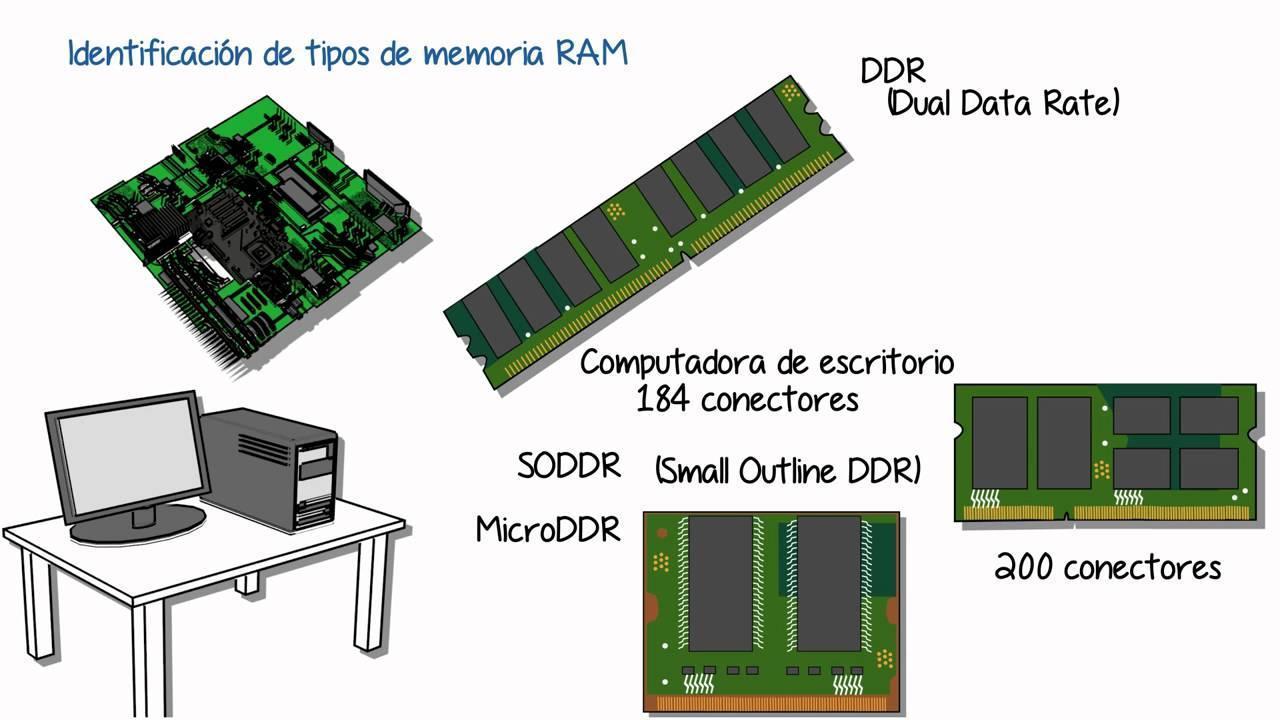
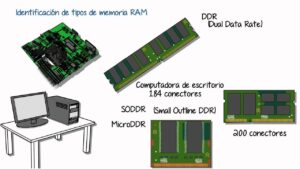
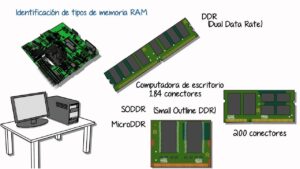
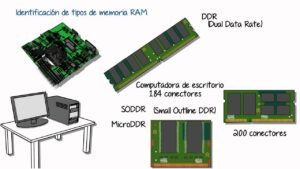
We can think of RAM as a work surface: the larger it is, the more documents you can have open simultaneously without overloading the system. Currently, the standard is to use DDR4 or DDR5For basic browsing and office tasks, 8 GB is sufficient, but if you do video editing or gaming, 16 GB should be your minimumBe careful with LPDDR memory, as it is usually soldered and you will never be able to upgrade it.
As for storage, mechanical HDDs are practically prehistoric in laptops. SSDs are now the dominant technology, and there are two options: SATA, which are slower, and... NVMe SSDs connected via PCIewhich are veritable rockets. To avoid spending your life deleting files, it's ideal to start with 512 GB, although 1 TB is the magic number to forget about space worries.
Graphics, Energy and the heart of the system
The GPU can be integrated, sharing RAM with the CPU and consuming less power, or dedicated, with its own VRAM, necessary for the 3D design or video gamesIn laptops, the dedicated graphics card is usually soldered in, so you should pay close attention to the amount of memory and the power limit that the manufacturer has assigned to it to avoid bottlenecks.
Battery life is measured in watt-hours (Wh). To prevent premature degradation, the smartest thing to do is prevent the equipment from overheating Avoid excessive power consumption and don't leave it plugged in at 100% all the time unless absolutely necessary. On the other hand, the motherboard acts as the data highway; if the buses are too narrow, you'll experience poor performance even if you have the most powerful CPU on the market.
We also can't forget the BIOS or UEFI, the basic software that boots the machine and is stored on a non-volatile ROM chip. A useful tip: if you notice that your laptop loses the time every time you shut it down, it's most likely that the the motherboard battery has run out and need an immediate change.

How to build your own PC step by step
Building a computer from scratch is the best way to save money and have a machine tailored precisely to your needs. It's not unreasonable, and thousands of users do it to avoid the pre-configured setups from stores, which often They are not 100% satisfactoryIf you want to learn, check this out. Complete hardware guide: how to build your PC. you only need one Phillips screwdriverCable ties and, if you want to be careful, gloves to avoid leaving grease on the circuits.
The first step is to remove everything from the boxes to avoid interrupting the workflow. Leave the PC case ready, installing the I/O shield and the... brass spacersIt is highly recommended to assemble the basic components outside the case to have more room to maneuver. First, we place the processor in the socket, taking care to Do not bend the pins, then the NVMe M.2 SSD and finally the RAM.
If you're using an air cooler, install it now. If it's an AIO liquid cooler, wait until the motherboard is inside the case, as the radiator needs to be secured to the structure. Once the motherboard is ready, insert it into the case and screw it in. Connect the front panel cables carefully. if a pin does not go in smoothlyDon't force it, because breaking it would be a total disaster.
Food and finishing touches
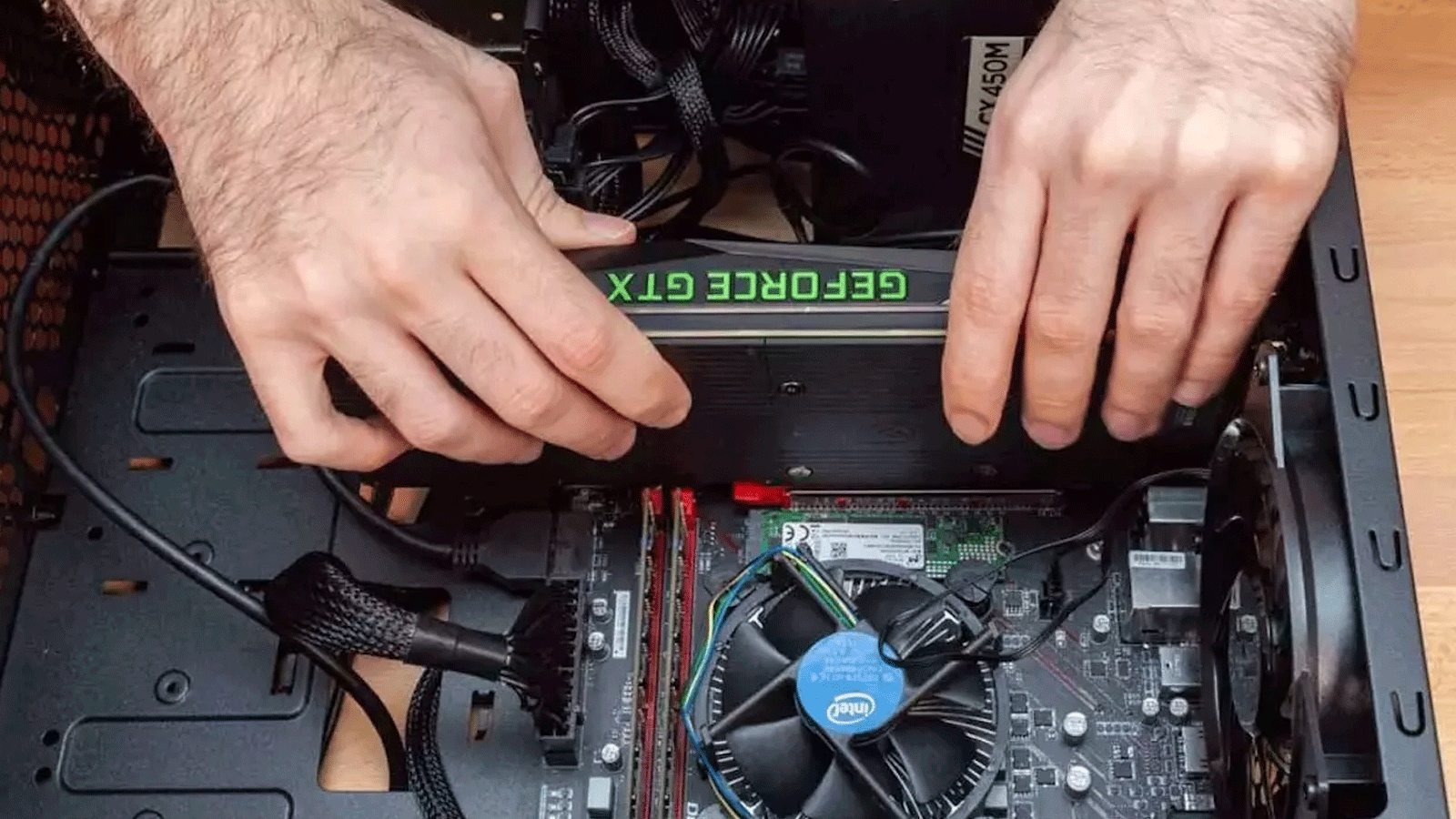
If your power supply is modular, connect the necessary cables first, then fit the power supply into the chassis. Start with the 24-pin ATX cablewhich is the bulkiest and most difficult to route. Next, place the graphics card in the PCIe slot, screw it to the chassis, and connect its power cables. To optimize the process, you can follow a Guide to configuring and choosing hardware components before assembly.
Static electricity is the number one enemy. To prevent a spark from destroying a component, use a antistatic wristband Or touch an unpainted metal object before handling the pieces. Never work on carpets or fabrics that generate static electricity. As for thermal paste, remember that less is moreA small point in the center is enough to prevent it from overflowing and causing a short circuit.
Before turning on the computer for the first time, perform a quick check. Verify that the RAM has... "click" on both sides and make sure there aren't any loose screws rattling around inside the case. If it doesn't start the first time, don't panic; it's usually something silly like the power supply switch being off or a cable improperly fitted.
Special cases: Raspberry Pi and SBC
Outside the world of traditional PCs, there are Single Board Computers (SBCs), where the Raspberry Pi These are the most well-known. Many people use them to develop impressive projects that the average user wouldn't even think of. Therefore, it's increasingly common for people to want to get started with these single-board computers, choosing the version that best suits their needs. price, power or connectivity.
Mastering the interaction between CPU, RAM, and storage, along with the ability to assemble and maintain components, allows you to optimize any computer. This ability to make smart decisions when purchasing hardware ensures that the investment becomes a success. real performance and extended lifespan for any machine, whether it's a compact laptop or a high-performance tower.
