- Setting the correct time and time zone automatically on Android, iPhone, and other devices prevents errors when changing time zones or traveling.
- If the automatic update fails, you can always manually adjust the date, time, and time zone from the system settings.
- Region errors, software updates, or older devices can cause mismatches, but these can be corrected by checking the settings.
- Smartwatches, computers, and Smart TVs depend on synchronization with the network or mobile phone, so it's a good idea to check their time with each seasonal change.
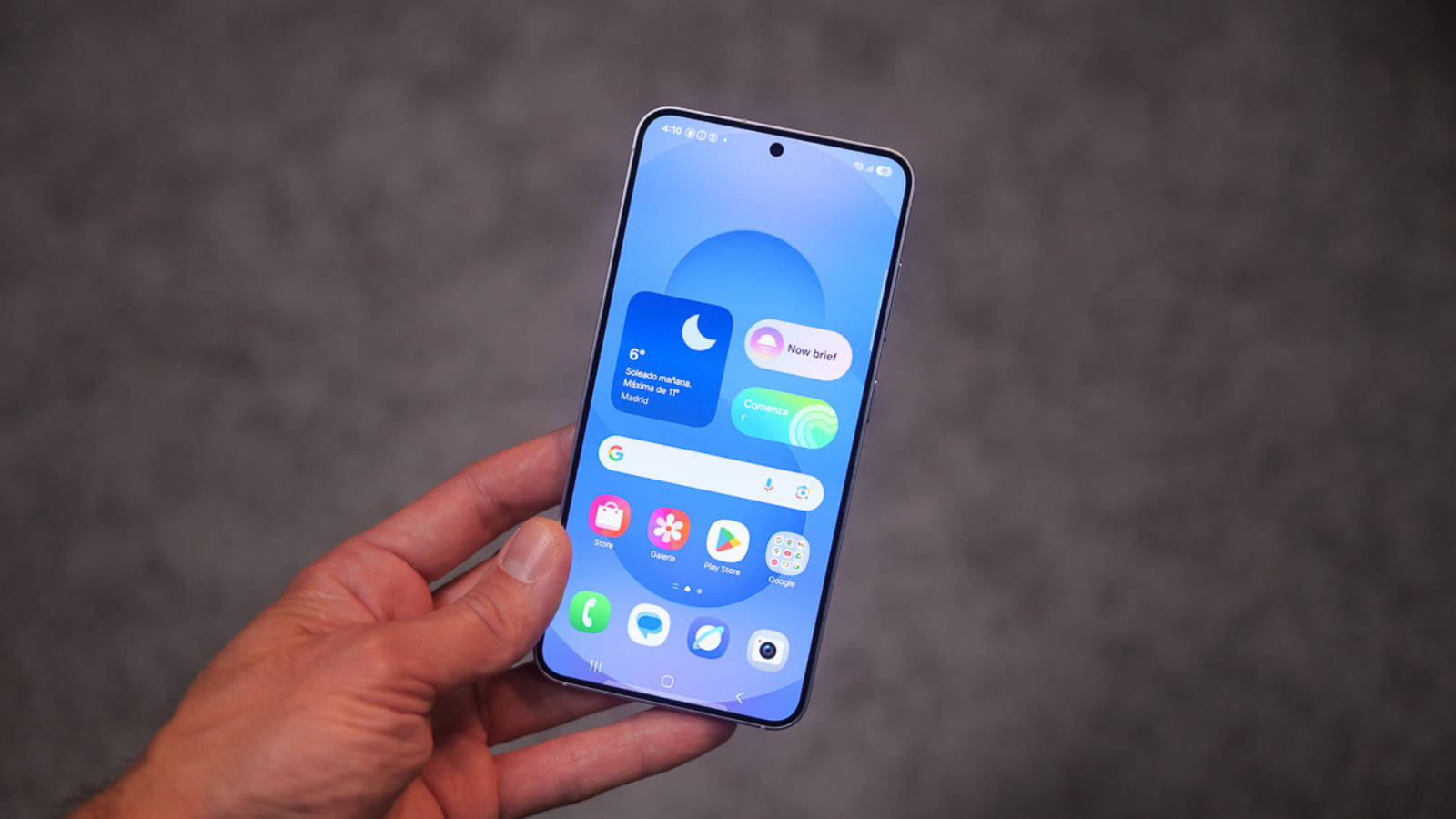
If you've ever wondered whether the mobile phone will move beyond the old time to new time without messing it upYou're not the only one. Between summer and winter time changes, trips to other countries, and occasional device malfunctions, having your watch set correctly is essential to avoid missing flights, meetings... or oversleeping because your alarm didn't go off when it should have.
The good news is that nowadays almost all smartphones, smartwatches, computers, and TVs change the time automatically. Even so, it's good to know How to check the settings and how to manually change the time on your mobile phone. In case something goes wrong. This guide covers everything: Android, iPhone, watches, computers, Smart TVs, reasons why the time gets out of sync, and how to fix it properly.
How to change the time on your Android phone
On most Android phones, the time is automatically adjusted using information from the mobile network or internet. Even so, it's important to check that the correct option is enabled and, if necessary, know how to adjust it. manually set the date and time.
Set automatic date and time on Android
The most convenient and safe way to forget about problems is to let your mobile phone use the automatic date and timeThis way, it will only update when there is a change to summer/winter time or when you travel to another time zone.
The steps may vary slightly depending on the brand (Samsung, Xiaomi, OPPO, Motorola, etc.), but in all cases the route is very similar:
- Open Settings on your Android mobile.
- Find the section "System", “System settings” or “General”.
- Sign in "Date and Time".
- Activate the option "Automatic date and time" or “Use network time”.
- Also activate, if it appears, “Automatic time zone” or “Use network-provided time zone”.
With these options enabled, the phone will query the network for the correct time and time zone and apply them automatically. This is ideal for the phone to switch to Summer and winter time without you having to touch anything.
Manually change the date and time on Android
You might prefer to have complete control over the time, or the automatic update might be failing due to network or software issues. In those cases, you can edit the time manually in some seconds.
To do it:
- Go again to Settings > System > Date & time (or a similar path on your mobile).
- Deactivate "Automatic date and time".
- Deactivate, if it's on, “Automatic time zone”.
- Tap on "Date" and choose the correct day, month, and year.
- Tap on "Time" and adjust the hours and minutes.
- In the option “Time zone”Select the one that corresponds to you (for example, Madrid if you are on the peninsula).
From that moment on, the phone will no longer make changes on its own: You will have to do all schedule adjustments manually.This is useful if you don't trust the internet or travel often and want to keep the time of your home country.
Check the time zone and region on Android
One of the most common mistakes is setting the time correctly… but Incorrectly selected time zone or regionThis causes discrepancies of one or more hours without us noticing.
On many Android devices, especially those from brands with their own custom interfaces like Xiaomi, Realme, or similar, in addition to "Time Zone," there is a setting for "Region" or “Country”. If the region does not match where you live, the phone may apply an incorrect time change.
- Sign in Settings and use the internal search engine to type “Region”.
- Access the settings and select Spain (or your correct country).
- Check later in Date and Time that the time zone matches your location.
If you have automatic time enabled, this combination of correct region and time zone will make the phone Don't get ahead or fall behind unnecessarily.
How to change the time on your iPhone (iOS)
On iPhones, the process is equally simple. Apple usually handles it very well. automatic time synchronizationBut you can also change it manually if something doesn't add up or if you need a different schedule.
Out of the box, the iPhone is prepared so that when the time changes or when you travel to another time zone, Adjust the time without you touching anything, as long as you have coverage or an internet connection.
Enable automatic time on iOS
To ensure your iPhone adapts to daylight saving time changes and your travels:
- Opens Settings on the iPhone.
- Sign in "General".
- Tap on "Date and Time".
- Activate the option “Automatic adjustment”.
With this, the phone will use your location and network data to set the correct time and time zoneThis is the most recommended setting to avoid surprises, especially with alarms, calendars, and notifications.
Manually change the time on iPhone
If you prefer to decide the exact time yourself, or if automatic adjustment gives you problems (for example, on a trip without an internet connection), you can Turn off automatic adjustment and set the time manually..
Steps to follow:
- Go to Settings > General > Date and time.
- Deactivate “Automatic adjustment”.
- Tap on the time zone and type the city you want to use (for example, Madrid or the one in your country).
- Tap on the date and select day, month, and year.
- Set the exact time by moving the hour and minute wheels.
Once you do that, the iPhone will keep that setting. If you travel or the seasons change, you'll be the one who has to change it. manually change the time each time.
The Android Clock app: time, time zone, alarms and timers
In addition to the system time, Android allows you to fine-tune many details from the Clock app: base time zone, world clock, alarms, timers, volume, vibration… Perfect if you want to control how the alarm sounds after the time change.
Change the time and time zone from the Clock app
On some devices, some date and time settings can be managed from within the phone's clock app. The general process is as follows:
- Open the app Clock of your device.
- Press on More or the three-dot icon and enter "Settings" or “Settings”.
This menu usually includes options such as:
- Home time zone / local time zone: You choose which time zone will be the default on your mobile when you are in your country or main city.
- Automatic city clock / Automatic local clockWhen activated, the phone will always display an additional clock with the time of your home city when you travel to other time zones.
- Change date and time: Direct access to the system's general date, time and time zone settings, where you can turn automatic date and time or automatic time zone on or off.
In some models, to set a specific time zone you will need to disable “Set automatically” and then manually select the city or time zone that interests you.
Set alarms that are time-proof
The classic fear surrounding the time change is:Will the alarm clock ring at the new time or the old time?If you have automatic time set correctly, the alarm will adjust itself. Even so, it's a good idea to review some options in the Clock app.
- Open the app Clock.
- Press on More > Settings.
- Go to section “Alarms”.
From there you can:
- Choose how long an alarm lasts before turning itself off with “To silence after”.
- Adjust how much is postponed with “Repeat alarm” or “Alarm Repetition”.
- Raise or lower the volume with the control “Alarm volume”.
- Make the sound gradually increase with “Increase the volume gradually”.
- Choosing what the physical volume buttons do: control volume, postpone o turn off the alarm.
- Decide which day you consider the week to start using the option “The week begins on” or “Start the week on”.
With these options properly configured, even if the time change occurs in the early hours of the morning, the system will adjust the time and the alarms will go off. Correct time according to the new schedulenot the old one.
Timer settings on Android
Timers also have their own options, useful for cooking tasks, exercise, or short reminders. Although the time change doesn't affect them as much, it's a good idea to check their behavior.
- Open the app Clock.
- Sign in More > Settings.
- Go to section “Timers”.
From here you can:
- Choose warning tone at the end of a timer with “Timer sound”.
- Configure the volume to increase gradually using “Increase the volume gradually”.
- Enable or disable timer vibration (Not all devices include this option).
World clock: See the time in other cities
If you travel frequently or work with people from other countries, the world clock It is a very practical tool for having several hours visible at the same time.
- Open the app Clock.
- Tap on “World Clock”.
- Press on “Add” or “Complete” on the bottom.
- Type the city name in the search bar and select it.
Then you can reorganize the cities by holding down each one and moving it up or down in the list, or remove them By swiping to the side. This way you'll always have control over the actual time you're sending messages or making video calls to other time zones.
Why does the time on my mobile phone sometimes change incorrectly?
Although all of this seems quite simple, in practice problems can arise curious errors with the time: mobile phones that advance by an hour for no reason, that do not change the season correctly, or that show a time different from the real one.
There are several common reasons why your mobile phone clock gets out of sync, and it's a good idea to know them so you can catch them in time and fix them without going crazy.
Problems with automatic time zone
The first suspect is usually the adjustments of automatic time zoneWhether activated or not, an incorrectly selected time zone can cause the mobile phone to display the wrong time even if the date appears correct.
On Android, check out Settings > System > Date & time that:
- The option is enabled “Automatic time zone” if you want the mobile to pick it up from the network.
- Or, if you use it manually, that the chosen time zone It coincides with where you are (for example, not having the Canary Islands if you live on the mainland, or vice versa).
On iPhone, go to Settings > General > Date and time and check the option of “Automatic adjustment” and the configured city. If you travel offline (for example, by plane) and arrive in a different country, the iPhone won't be able to change time zones until regain access to the network or WiFi.
Region incorrectly configured on some Android devices
On mobile phones with interfaces like MIUI (Xiaomi) or similar ones, there is a setting to "Region" independent of the time zone. If for any reason that region changes (an update, a bug, an incorrect initial setup), the phone may apply different time policies.
In order to solve it:
- Go to Settings and use the search engine to type “Region”.
- Go into that option and select the correct region (Spain or another country where you are located).
- Then double-check Date and Time to make sure everything matches.
This detail often goes unnoticed, but if the region isn't set correctly, some phones may... change the time or format by themselves without you expecting it.
Errors after a software update
After a major system update (a new version of Android or iOS), it's possible that the device may experience some issues. temporary failure with time settingIt's not the most common thing, but it happens.
If you notice that the time is not adjusted after updating:
- Check the settings of date, time and time zone as we have seen.
- If it's still not working, set the time. manually until a new patch arrives.
- Check periodically for new updates available; they often correct these errors.
Very old mobile phones and outdated time zones
On older phones that no longer receive updates, the database of Time zones can become obsoleteWhen a country changes its daylight saving time policy or modifies its time zone, that mobile phone may not notice and continue to apply old rules.
In these cases:
- Consider using the time manual to avoid surprises, especially during time changes.
- If you use Android, you could use third-party apps (such as certain world clock or time synchronization apps) that update your own databases.
- Keep in mind that setting the wrong time can cause errors in other applications (email, messaging, banking apps, etc.).
Special cases: when there is no longer a time change, but the mobile phone advances.
In some countries, such as Mexico, it has recently been eliminated. summer scheduleHowever, many servers and devices continued to think for a while that there was a change, advancing the time when it was no longer appropriate.
If your mobile phone moves forward one hour in a country where the clocks are no longer changed:
- Go to Settings > Date & time.
- Disable automatic options time and time zone.
- Choose manually the correct time zone (for example, GMT -06:00, GMT -05:00 or GMT -07:00 depending on your region within the country).
In many cases, after a few days or weeks, the servers update and you can reactivate automatic time. Meanwhile, manual settings ensure your phone always displays the correct time. real time.
Will the alarm clock ring with the new time?
One of the most frequently asked questions when the last Sunday of March or October arrives is whether the The alarm clock will respect the new time.In practice, if the device is properly configured, the change is transparent to the alarms.
To be on the safe side before the time change:
- Check that the following is enabled on your mobile device: automatic time and that the time zone is correct.
- Check in the Clock app that the alarms are set. for the right day and at the desired time.
- If you use multiple devices (mobile, smartwatch, tablet), make sure they all use the same time zone.
In smartwatches, for example, the time usually comes from the synchronization with mobileIf the phone is properly connected, the watch will update automatically; otherwise, it will also carry over the error.
Change the time on other devices: smartwatch, computer and Smart TV
Although the focus is usually on the mobile phone, it's not a bad idea to keep track of how the time is handled on other everyday devices: smartwatch, computer (Windows and Mac) and Smart TVEveryone can influence your routine if they display the wrong time.
Smartwatches and fitness trackers
Most smartwatches and fitness trackers rely on your phone. They usually get the time through... Bluetooth or Wi-Fi and you don't need to touch anything on the watch itself.
If you notice that your watch shows a different time than your mobile phone, try this:
- On mobile, go to Settings> BluetoothFind the watch and tap "Forget" or "Unlink".
- Reconnect the watch from the official app (Samsung Health, Mi Fitness, Apple Watch, etc.).
- Check in the app, in the device profile, that it has updated date and time.
If it's still not working, the watch may need a... software update or even a factory reset to erase old errors and resynchronize everything from scratch.
Windows computers
In Windows, time management can be automatic or manual. If you use your PC for work, it's crucial that the time is correct to avoid problems. problems with emails, digital signatures, or online applications.
To use automatic time:
- Open the menu Home and enters Configuration.
- Go to “Time and language”.
- En "Date and Time", activate “Set time automatically”.
- Also activate, if available, the option to automatic time zone.
If you prefer to adjust the time manually, on the same screen disable automatic settings, tap on "Change" Go to “Set date and time manually” and enter the correct values. Then, click the button. “Sync now” This will allow you to force Windows to check the time with its servers.
Mac computers (macOS)
On Macs, you can also choose between automatic or manual adjustment. Apple relies on time servers and location services to keep track of the time based on your location.
To set the automatic time:
- Click on the apple menu (apple icon) and enter System settings.
- Go to General and then to “Date and time” or “Language and region” depending on the version.
- Active “Set time and date automatically”.
If you want greater precision, it's best to have a Mac. always connected to the Internet and allow location services to determine the time zone:
- En System settingsGo to “Privacy and security”.
- Go to "Location".
- Within “System Services”, activate the option “Time zone”.
If for any reason you need to change the time manually, turn off “Set date and time automatically”, tap on “Define”Correct the date and time, and then do the same with the time zone indicating the correct city.
Changing the time on a Smart TV
Smart TVs often depend on the TV or Internet broadcast to set the time. Even so, almost all of them allow you to adjust the clock manually or set an automatic mode.
The process varies depending on the manufacturer, but the pattern is usually this:
- Open the TV's main menu with the button Home of the command.
- Go to Settings or “All settings”.
- Access the section General or “System”.
- Look for options like "Time", “Date and time” or “Clock”.
On a Samsung Smart TV, for example, within General > System Manager > Time/Clock, you can choose Automatic “Clock Mode” or “manual”. In automatic mode, the TV will be guided by the signal it receives; in manual mode you will have to set the exact date and time.
If you choose automatic mode, it's important to check that the TV has detected correctly your time zoneIf you notice an odd time, switch to manual mode and correct it.
When and why does the clocks change in Spain
Every year in Spain we change the clocks twice, once in spring and once in autumn, to adapt to summer and winter timeAlthough digital devices do it automatically, understanding the dates helps to detect if something has gone wrong.
The usual scheme is this:
- Last Sunday of March: it goes forward one hour.
- Last Sunday of OctoberIt's delayed by one hour.
Peninsular time, in the early hours of the last Sunday of March, at 02:00 becomes 03:00In the Canary Islands, the change takes place from 01:00 to 02:00. When autumn arrives, the process is reversed: at 03:00 it becomes 02:00 again on the mainland, and in the Canary Islands at 02:00 it returns to 01:00.
The original idea behind these changes was make better use of daylight hours and reduce energy consumption, especially in summer, by delaying the time when artificial lighting is switched on. However, several experts have questioned whether this real saving still exists, and the impact on biological rhythms and health is debated.
Within the European Union, there has been talk of eliminate seasonal changes and to establish a single time zone year-round. A deadline was even proposed, but countries haven't reached a consensus on which time zone would be most suitable (summer or winter), and for now, the time change remains in effect. In Spain, the change is confirmed for at least October 2026, which indicates that, barring any surprises, We will continue changing the clocks for a while.
Frequently asked questions about the time on mobile phones and other devices
Finally, it is worth clarifying some common doubts that arise every time the date of the time change approaches or when the mobile phone surprises with a strange time.
Do all mobile phones change the time automatically?
In general, yes: almost all modern mobile phones, both Android and iPhone, come with Automatic time and time zone enabled by defaultHowever, since this setting can be adjusted, if you previously disabled it or manually changed the zone, the phone might not update automatically.
The recommendation is to check periodically, especially before a major time change, that the automatic options are activated and that the time zone matches your actual location.
Who exactly determines the time displayed on the mobile phone?
The time on your mobile phone is the sum of three factors: what the operating system (Android or iOS), the information that provides you with the mobile network or WiFi and, in some cases, the data from telephone operatorIn addition, time zone databases maintained by Google, Apple, or other providers are involved.
If any of these elements fail, become outdated, or do not match your country, you may notice that the phone It doesn't change the time when it should or that changes when it's no longer appropriate, as has happened in places where summer time has been eliminated.
When will Spain stop changing the clocks?
Today there is not one firm date to stop changing the clocks. It has been debated in the EU, proposals have been put forward, and possible scenarios have been discussed in Spain, but for now the officially approved two-year changes remain in place, at least until 2026.
When a final decision is made, it makes sense to announce it well in advance and reflect it in regulations and time zone databases, so that devices can adapt automatically without us having to do anything special.
Would winter time or summer time remain permanently?
There is no consensus. Many prefer the summer schedule for the longer evenings and the feeling of more leisure and light after work, while a significant part of the scientific community believes that the Winter time It is the one that best fits with the rhythms of natural light and rest.
In surveys conducted in Spain, such as those by the OCU, a large part of the population is inclined to maintain summer time, but the final decision, if it is made, will have to strike a balance. health, economy, security, and social preferences.
With all that said, keeping your phone's clock set correctly is no longer just a matter of fiddling with the hands like before, but rather mastering a few key settings: enabling or disabling automatic timekeeping as needed, checking your time zone and region, knowing how to change the time manually, and understanding how your watches, computers, and TVs sync. With these concepts clear and a quick review before each seasonal change or important trip, it's much easier to ensure all your devices are correctly set. Correct time without surprises or alarms from the alarm clock.
