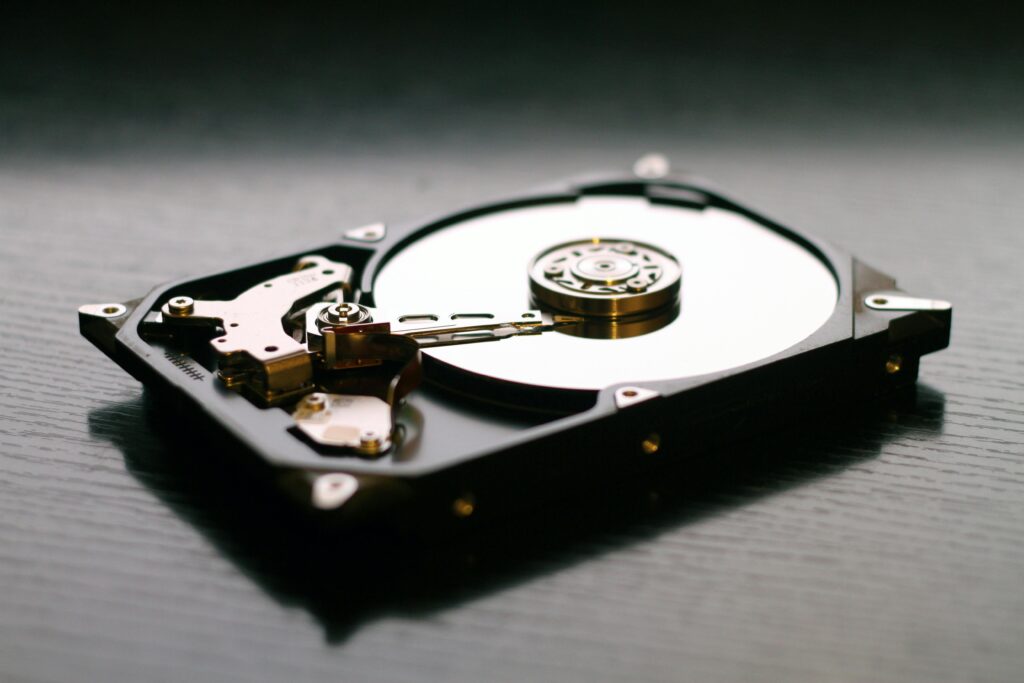
Hard drive cloning is an essential technique for any user who wants to protect your data o migrate to a new deviceIn this article, I will guide you step by step through the process of cloning your hard drive, whether for Create a backup or for update your system to a faster SSD. Let's go!
What is hard drive cloning?
Before we dive into the process, it's important to understand exactly what hard drive cloning is. It's about create an exact replica of the entire contents of one hard drive to another. This includes the operating system, programs, files, and settings. It's like making a perfect clone from your current hard drive.
Tools needed
To clone your hard drive, you will need a few tools:
1. cloning softwareThere are several free and paid options. Some of the most popular are Macrium Reflect Free, EaseUS Todo Backup Free y Clonezilla.
2. Target hard drive: Must have at least the same capacity as the original disk.
3. SATA cable or USB-SATA adapter: To connect the new drive to your computer.
Previous preparation
Before starting cloning, it is crucial to perform some preliminary steps:
1. Clean your current hard drive: Delete unnecessary files and defragments the disk if it is a HDD.
2. Make a backup: Although cloning is safe, prevention is always better.
3. Connect the new disk: Make sure your computer recognizes it correctly.
Step-by-step cloning process
Now that we have everything ready, let's go to the cloning process:
Install and run the cloning software
Download and install the software you've chosen. In this example, we'll use Macrium Reflect Free.
Select the source disk
In the program interface, Identify the disk you want to clone. This will usually be the disk where you have the operating system installed.
Choose the destination disk
Select the new disk where you want to create the copy. Be careful not to confuse it with the original disk to avoid data loss.
Configure cloning options
Some tools allow you to adjust the size of partitions. If your new disk is larger, you can take advantage of all the available space.
Start the cloning process
Once everything is set up, the process begins. It can take from a few minutes to several hours., depending on the size of the disk and the speed of your system.
Verify cloning
When I finish, check that cloning has been carried out correctlySome programs offer built-in verification tools.
Boot from the new disk
Once cloning is complete, it's time to try the new album:
1. Turn off your computer and disconnect the original drive.
2. Plug the new drive into place.
3. Turn on the computer and enter the BIOS/UEFI.
4. Set the boot order so that the new album is the first.
5. Save changes and reboot.
If all went well, your system will boot from the new disk as if nothing had changed.
Possible problems and solutions
Sometimes some inconveniences may arise during the process:
- boot failure: Make sure you have cloned all necessary partitions, including the boot partition.
- Slow performance: If you have cloned to an SSD, you may need optimize the system for SSD enabling TRIM and disabling defragmentation.
- Windows activation problemsIn some cases, Windows may detect the hardware change. This usually resolves itself, but if not, you'll need to contact Microsoft Support.
– If you are cloning a Smallest ssd than your original HDD, please make sure that the space occupied on the original disk does not exceed the capacity of the SSD.
- Update the drivers after cloning if you have significantly changed the hardware.
- Considers clean up the registry and optimize the system after cloning to ensure optimal performance.
Hard drive cloning is a powerful tool that allows you to keep your data safe y improve the performance of your systemBy following these steps, you'll be able to complete the process safely and efficiently. Ready to clone your hard drive? With a little patience and care, you'll see it's not as complicated as it seems.