- Advanced review and configuration of your router and devices to increase connection speed and security.
- The importance of location, upgrade, and band and channel selection, including tips for homes and rural areas.
- Recommendations for measuring improvements and practical tips for addressing persistent connectivity issues.
Have a good internet connection at home or at work It has become a daily necessity, whether for working, watching series, playing online, or managing multiple devices. However, speed, range, and stability issues are common and can be caused by both our router's configuration and our physical location. Fortunately, there are several practical actions and configuration changes that can help us. optimize your internet connection and get the most out of our Wi-Fi network.
Optimization goes far beyond plugging and forgetting the router.From adjusting basic security settings to choosing the right channels or bands, updating drivers, and using repeaters, there are a range of factors that influence the quality and speed of our connection. This article reviews the most important elements for improving your home network, as well as recommendations for measuring the results obtained after implementing these improvements.
Check your router: configuration and security
Most users keep the default settings when installing a new router, but this limits network performance and security. Accessing the administration panel (usually from the address 192.168.1.1) is the first step to adjusting the connection to our needs. Change default passwords (both Wi-Fi and router access) and renaming the SSID prevents unwanted access and protects our data. It is also advisable to activate the guest network for those people who do not need access to our internal devices.
Setting the broadcast bands and selecting channels are also crucial. Many current routers allow you to unify the 2.4 GHz and 5 GHz bands under a single name using options like "band steering." This feature can simplify access, but if you have older devices or compatibility issues, you may want to separate the networks. This way, you can manually choose the most appropriate band for each device: 2.4 GHz for greater coverage over long distances, and 5 GHz (or even 6 GHz if your router supports it) for maximum speed and lower latency over shorter distances.

Optimal location and auxiliary devices
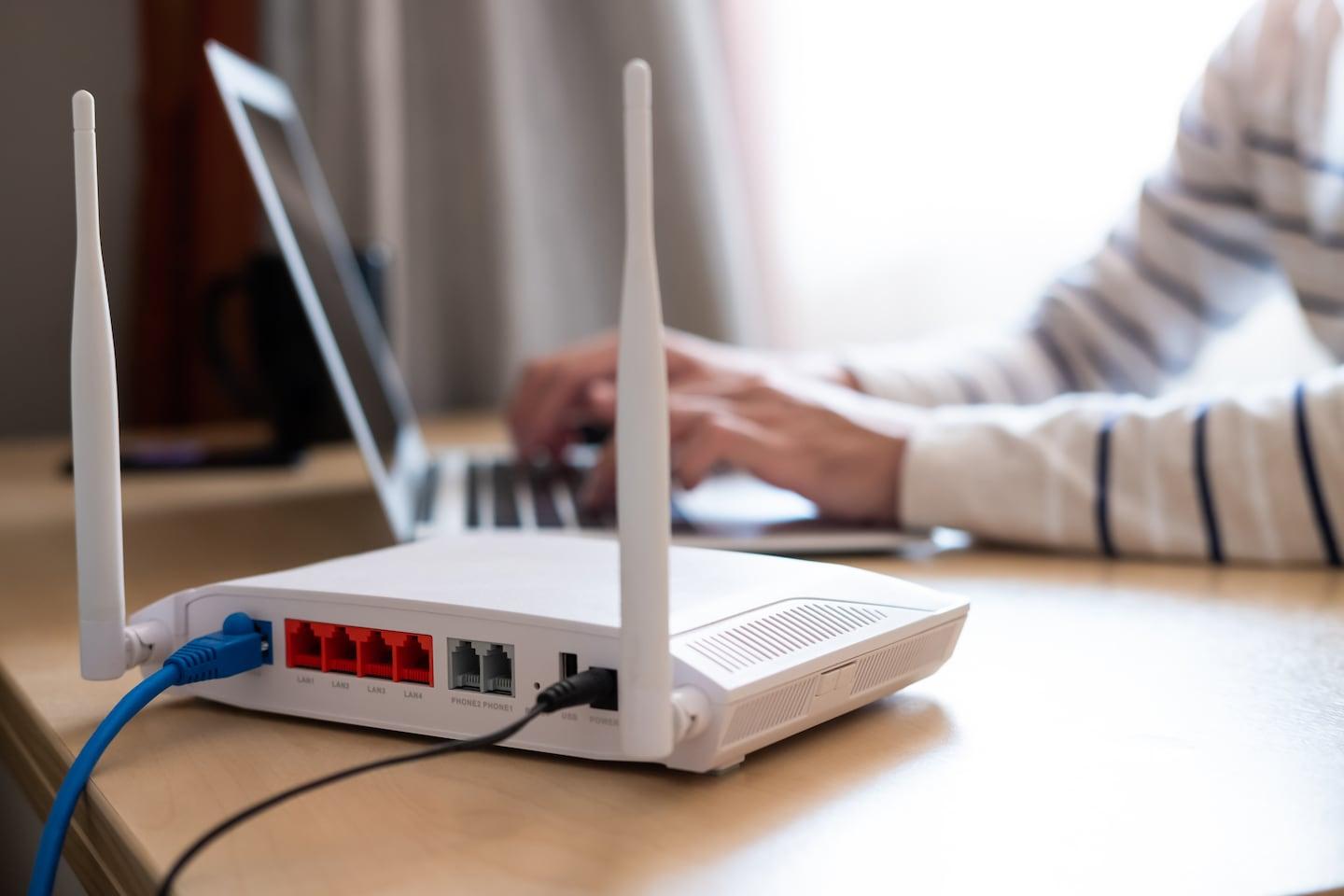
Place the router in a central position, away from thick walls or appliances that can create interference, is essential. Avoid enclosing it in furniture, damp areas, or near devices such as microwaves, cordless phones, and baby monitors, as all of these can impair the Wi-Fi signal. To improve coverage in large areas or with multiple floors, signal amplifiers, repeaters or mesh systems they are excellent options.
For those who live in rural areas without access to terrestrial broadband or with unstable connections, there are alternatives such as installation of satellite dishesCommunities and public administrations offer programs that facilitate connectivity through devices compatible with Ka bands and DVB-S2X technology, providing competitive speeds and more reliable internet access even in areas where traditional cables are unavailable.
Advanced configuration and device control
For applications that require low latency or higher bandwidth, such as online gaming or video calls, it may be useful to configure Quality of Service (QoS) on the router to prioritize certain devices or tasks. In addition, assign specific ports or fixed IP addresses can improve the experience on consoles or PCs.
It is also important to keep Wi-Fi card drivers updated of your computer, as recent versions fix bugs and improve compatibility and speed with modern technologies like Wi-Fi 5 and Wi-Fi 6. Always check with the manufacturer's website instead of just relying on automatic Windows updates to ensure optimal performance.

Quick tips if your connection is slow
A few simple steps can make all the difference. Restart the router and devices This usually resolves temporary issues. It also checks for nearby interference, prevents multiple devices from consuming bandwidth simultaneously, and performs online speed tests to compare them with your contract. If your actual speed is significantly lower, contact your carrier to rule out external issues.
Likewise, it is recommended clear apps and cache on devices like smart TVs or streaming sticks, as data accumulation can slow them down. Don't forget to update the firmware on devices and apps that use the internet to keep everything running smoothly.

Measure the results after optimizing the connection
To check if the actions implemented have been effective, perform speed tests before and after of the changes, using different devices and in different areas of the home. This will allow you to evaluate both the improvement in download speed and the stability of the connection. Additionally, monitoring latency using commands like ping helps detect micro-drops or variations that may affect the online experience.
La connection performance It can also be influenced by power consumption; disabling power saving on your Wi-Fi card can improve speed on laptops and other devices.
A stable and fast connection depends on multiple factors, from the router's location and configuration to device maintenance and updates. Implementing a strategy of best practices and providing adjustments at both basic and advanced levels makes it easier to improve security, range, and speed. In cases where limitations persist and cannot be resolved, it may be advisable to seek specialized technical assistance or explore innovative solutions, such as satellite access in rural areas or advanced mesh systems.