- The font size in Gboard adjusts from 85% to 200% independently of the system.
- Keyboard letters and icons are scaled; emojis remain at their original size.
- It is activated in Gboard Settings > Preferences > Appearance > Font Size.
- Progressive rollout via beta; design tweaks and autocomplete are also coming.
Font size control in Gboard is now available to some users, with its rollout progressing gradually through the beta version. This new feature allows users to increase or decrease the keyboard font size using several predefined steps, without affecting the rest of the mobile interface, improving both convenience and accessibility in everyday use.
Beyond simply enlarging the text, this adjustment also scales the toolbar icons and other visual elements of Gboard itself, maintaining a welcome aesthetic consistency. However, emojis don't change size with this control, so they retain their appearance to avoid disrupting the selector grid and remain easily recognizable.
What exactly is Gboard's new font setting?
Google has added a dedicated control within Preferences with increments ranging from 85% to 200% . By default, the option appears as "Same as system," but by moving the slider you can set a size independent of Android's default, ideal if you want the keyboard to appear larger or more compact without changing anything else.
This adjustment affects Gboard's internal letters, numbers, and icons so that the interface scales consistently. The built-in preview shows you in real time how it will look, making it easy to choose the exact point that's comfortable for you without having to constantly switch between keyboards.
There are situations where a larger font size makes a difference: if you often type on the go, if you experience eye strain, or if you simply prefer a more legible keyboard. Conversely, reducing the font size to 85-100% makes everything look more compact and allows you to see more content on screen without sacrificing accuracy.
Difference between font size and keyboard height
It's important to distinguish the new font control from the traditional keyboard height option . Height modifies the area Gboard occupies on the screen (gaining or losing rows of space), while font adjustment focuses solely on typography and icons , without increasing the vertical space obscuring content.
In practice, this means you can have a larger keyboard without sacrificing usable system area. If you also want to raise the typing area, you can combine this with the keyboard height, but it's not required for improved readability.
How to enable font size in Gboard
The path is simple and designed so you won't get lost: go to Gboard Settings > Preferences > Appearance > Font Size . There you'll see the slider with predefined steps and the "Same as system" option if you prefer everything to be synchronized with Android.
- Opens Settings from the Gboard keyboard.
- Go to section Preferences.
- Sign in Appearance.
- Tap on Font size.
- Choose a level between 85%, 100%, 115%, 130%, 150%, 180% and 200%.
When this feature is first enabled, many users will see a notification such as "Keyboard font size has been updated ." This message may include a shortcut to the settings panel, so it's a quick way to get straight to the point and try out different sizes.
Still don't see it? Try updating Gboard from Google Play and check if you're on the latest beta . The rollout is gradual and may take a few days to reach all devices, so joining the beta program increases your chances of receiving it sooner.
Visual tweaks and settings reorganization coming at the same time
With this new feature, Google is taking the opportunity to implement design changes in Gboard. The suggestion bar adopts a pill-shaped (more rounded) style that fits with the expressive Material 3 aesthetic and brings a more modern and clean feel to the top of the keyboard.
Additionally, Gboard's Settings panel has been reorganized to make it easier to find popular options. Within Preferences, you'll see sections like Layout , Shortcuts , and Keypress , which help you locate common settings such as the dot when double-tapping the spacebar, vibration, or long-press duration.
These tweaks don't change how you type, but they improve how easy it is to find functions that might have previously gone unnoticed. The goal is to make keyboard customization less frustrating and faster for all types of users, from beginners to advanced.
Beyond the Source: Autocomplete and Voice as Great Supports
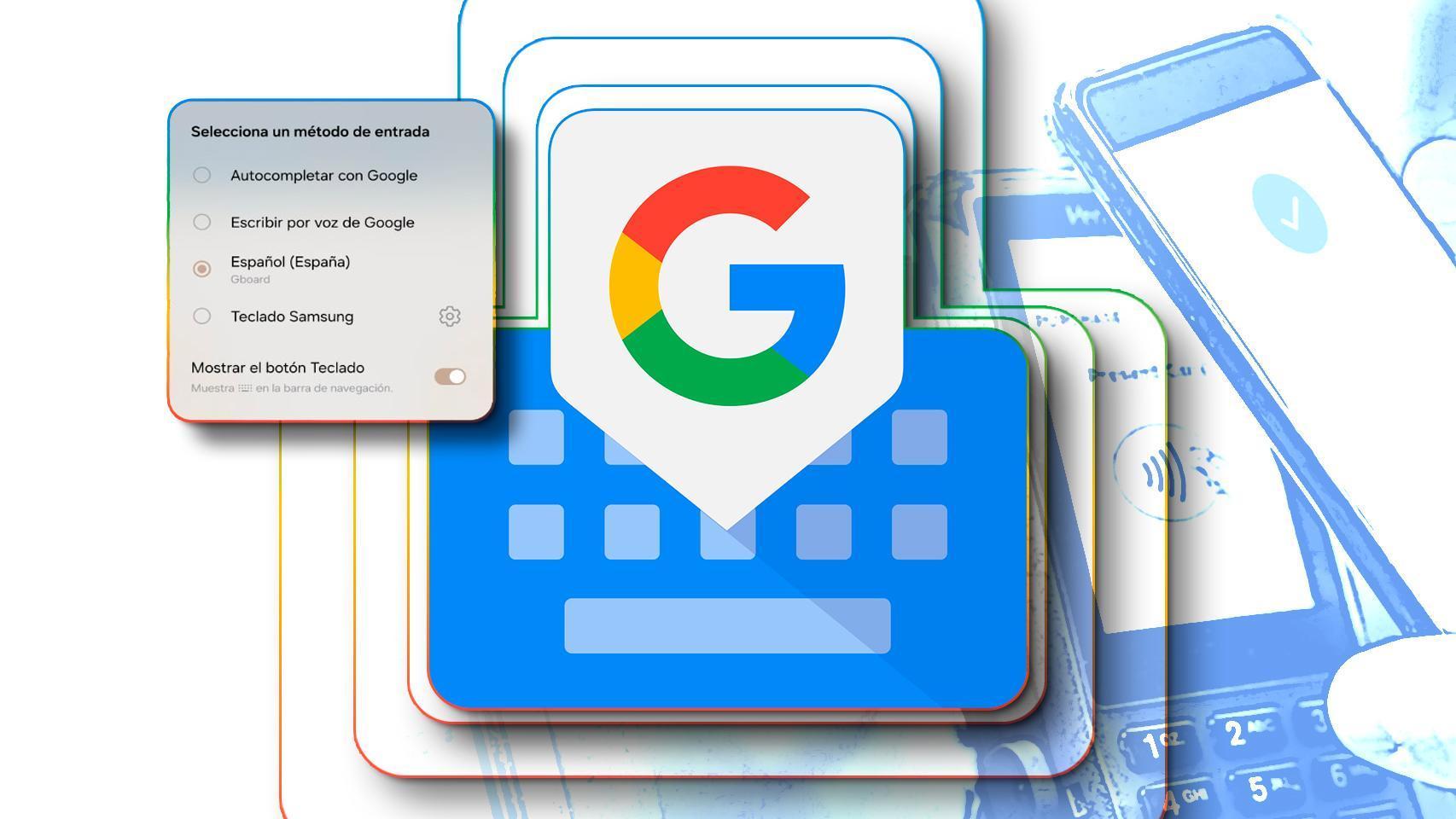
Meanwhile, Gboard has added a shortcut to Autofill, which some users in Spain have started seeing in beta version 15.7.5.787916401 . Activating it from the keyboard's on-screen settings displays a message to use " autofill with Google " with a clear activation button.
From the "Autofill" section, you can choose between Passwords and Payment Methods . In the latter case, the system will display your saved cards and prompt you to enter the security code before using them, making the process quick yet secure for completing forms and purchases without having to manually copy data.
Months ago, Google also revamped voice dictation with a smoother and more accurate experience . And let's not forget that Gboard retains the best features of Google Keyboard: swipe typing, dictation, and integrated Google Search for sharing content without switching apps. All of this adds up to a more useful and cohesive keyboard.
Availability: which versions and phones are receiving it
Font control is appearing in the latest Gboard beta, with reports mentioning version v.15.9 on devices like the Pixel 10. It's reasonable to expect it to roll out to more brands soon, including Samsung , although as always, the rollout depends on the region and whether it's on the stable or beta channel.
If you're interested in trying it before anyone else, the best thing to do is join the beta program through Google Play and check for updates. Screenshots confirming the update have been shared on social networks like X and in forums; note that some X pages require JavaScript to load and sometimes display generic warnings, but the important thing is that testers are confirming the rollout . In communities with "Members online," there are frequent discussions about the pop-up notification regarding font size and how to access the panel.
What changes and what doesn't change when you adjust the font
As the size increases, the letters, numbers, and internal icons grow larger to make everything more visible, including the shortcuts on the top keyboard bar. The idea is not only to make the text easier to read, but also to make interacting with buttons and tools more comfortable.
Emojis retain their usual size. This prevents breaking the selector grid and ensures their display remains organized. If you want to see larger emojis, you'll need to use the contextual preview area or third-party apps, as this control doesn't modify them.
Comparison with other keyboards: Samsung and SwiftKey
The ability to change the font in Gboard was a recurring request. In practice, it impacts a huge user base because Gboard comes pre- installed on so many Android devices . Compared to alternatives like Samsung's keyboard or Microsoft's SwiftKey, Google's move has generated a lot of buzz precisely because of its reach and the leap in customization it offers.
It's true that Samsung's keyboard has been refining its options and fluidity for some time , and in some models it has become a very serious competitor. However, with the combination of design tweaks, accessibility features, and smart functions (voice, autocomplete, search), Gboard reinforces its position as a clear, flexible, and useful keyboard for most users.
Android ecosystem context: the case of Xiaomi and HyperOS
As Gboard evolves, the Android ecosystem is also moving forward. There are reports that some Xiaomi devices are already receiving Android 16 based on HyperOS 3. This marks a shift from the days when the brand updated less frequently; now it seems that software support is taking priority and being rolled out more quickly on several models.
To find out if your phone is eligible, there's the HyperOS Update app on Google Play. Its purpose is simple: it tells you if your device will receive Android 16 and/or HyperOS 3. For example, a Redmi K30 might show a green update to HyperOS 3 but not to Android 16, while a POCO X7 will likely show both green due to its longer support.
Although it's not a Gboard feature, this context is important: with each major system update, APIs and services are refined , often impacting keyboards, dictation, and autocomplete. Therefore, it's not surprising that some new features arrive first on certain models or in certain regions before rolling out to everyone else.
Practical tips and frequently asked questions
What's the best percentage? It depends on your eyes, your phone, and your habits. If you're looking for a balance, 115%-130% is usually a good starting point: it's easier to read without the keyboard looking huge. For maximum readability, try 150%-180%. And if you want to see more content on screen, 85%-100% will give a more compact feel.
If you don't see the option yet, update Gboard, clear your cache if you like, and check if you're part of the beta program . When you launch it for the first time after receiving the update, look out for the "Keyboard font size has been updated" notification to jump straight to the settings and start testing.
In terms of forms, don't forget the new Autofill button , which provides quick access to passwords and payment methods. This will save you time by eliminating the need to copy data from the payment manager; just remember that, for security reasons, you'll be asked for the card verification code before using it.
The best thing about this set of improvements is that it reaffirms the idea of a user-centric keyboard: with adjustable font , updated design, improved dictation, and quick access to key data, Gboard offers a more versatile experience for very different profiles, from those who type at top speed to those who prioritize readability and accessibility.
Table of Contents
- 1 What exactly is Gboard's new font setting?
- 2 Difference between font size and keyboard height
- 3 How to enable font size in Gboard
- 4 Visual tweaks and settings reorganization coming at the same time
- 5 Beyond the Source: Autocomplete and Voice as Great Supports
- 6 Availability: which versions and phones are receiving it
- 7 What changes and what doesn't change when you adjust the font
- 8 Comparison with other keyboards: Samsung and SwiftKey
- 9 Android ecosystem context: the case of Xiaomi and HyperOS
- 10 Practical tips and frequently asked questions
