- Pixel density (PPI) is the determining factor in the sharpness of text and image, varying according to the physical size of the screen.
- There are critical technical differences between standard resolutions such as Full HD, QHD, and UHD, directly affecting the performance of the graphics card.
- The choice between 1440p and 4K depends on the balance between hardware power, viewing distance, and primary use (gaming or productivity).

When we start looking for a new monitor, it's normal to feel overwhelmed by all the acronyms and numbers. Between Full HD, QHD, and 4K, it seems like we need a PhD in engineering just to know if we'll be able to see the pixels while we work or if our graphics card will overheat mid-game. The key isn't just the resolution, but how those pixels are distributed across the physical size of the screen.
For those of us who spend hours glued to the monitor, whether coding, designing, or simply browsing, pixel density, or PPI, is what truly makes the difference between an image that looks like a mosaic and one that's silky smooth. Having 1080p on a small screen is not the same as having it on a giant one; that's where visual perception and the distance at which we place the monitor on the table come into play.
Understanding resolution and pixels
To get down to specifics, resolution is basically the total number of light points, called pixels, that make up the image. If we're talking about a Full HD screen (1920×1080), we have 1920 pixels horizontally and 1080 vertically , which adds up to about 2 million pixels. The more pixels there are, the more detail we'll have, provided the content we're playing supports that quality.
It's important not to confuse resolution with final quality. A panel might be 4K, but if the video we're watching is 1080p, the image will be displayed at that lower quality. The same is true in reverse: if we have a basic monitor but the video is 4K, we'll be limited by the maximum number of physical pixels our screen can display.
The world of PPIs: Why does density matter?
This is where things get interesting. PPI (pixels per inch) tells us how many pixels are concentrated in each inch of screen. If we take two monitors with the same resolution, but one is 24 inches and the other is 32, the 24-inch monitor will have a much sharper image because the pixels are more tightly packed.
- 27″ Full HD (1080p): It offers around 82 PPI. For many people, this may look somewhat grainy if they sit very close.
- 27″ QHD (1440p): It goes up to about 109 PPI, which is considered the sweet spot for balancing space and sharpness.
- 27″ UHD (4K): It reaches 163 PPI, providing brutal clarity, almost similar to that of modern laptops.
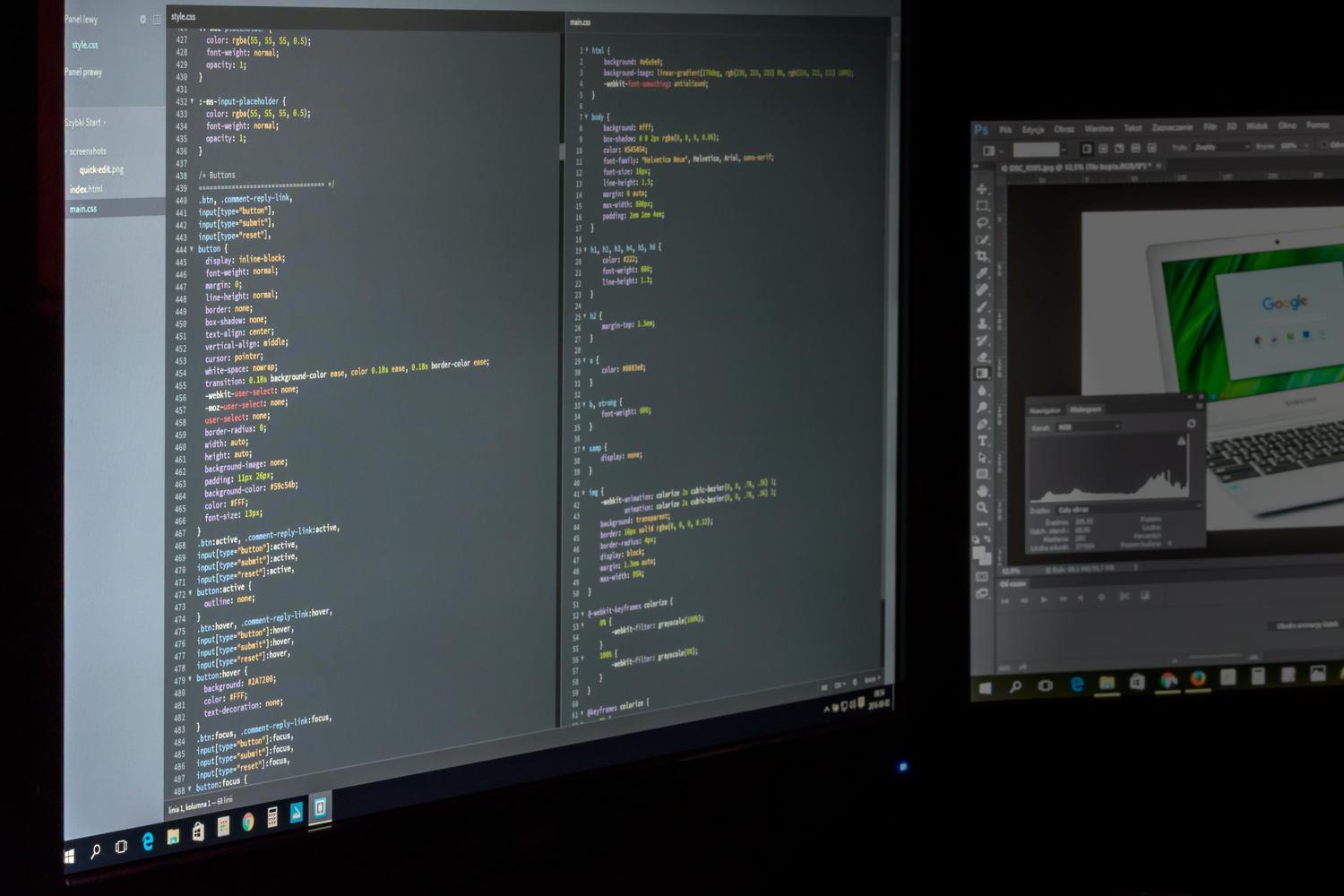
For a programmer or someone who reads text all day, jumping from 82 to 109 PPI is a noticeable change, but reaching the 160 PPI of a 4K display is what truly eliminates the feeling of seeing individual pixels in the text. However, such high density often forces us to use Windows or macOS scaling to prevent icons from appearing tiny.
Demystifying "2K" and nomenclature
There's a widespread misconception that 1440p resolution is 2K. Technically, 2K comes from digital cinema and is a 2048×1080 resolution, very similar to Full HD. 1440p, correctly called QHD or WQHD (Quad HD) , is actually four times the basic HD resolution (720p), not four times Full HD. This distinction is crucial because the workload on the graphics card is very different.
Going from 1080p to 1440p means processing almost 78% more pixels, while 4K requires moving four times more data than Full HD. If you buy a GPU thinking that "2K" is a small step, you might be disappointed when you see the FPS plummet in demanding games.
Formats and aspect ratios
Not all monitors are the classic 16:9 rectangle. Depending on what you use your PC for, there are other interesting options. The 16:10 format is highly valued in the professional world because it offers more vertical space , ideal for reading lines of code or long documents without scrolling so much.
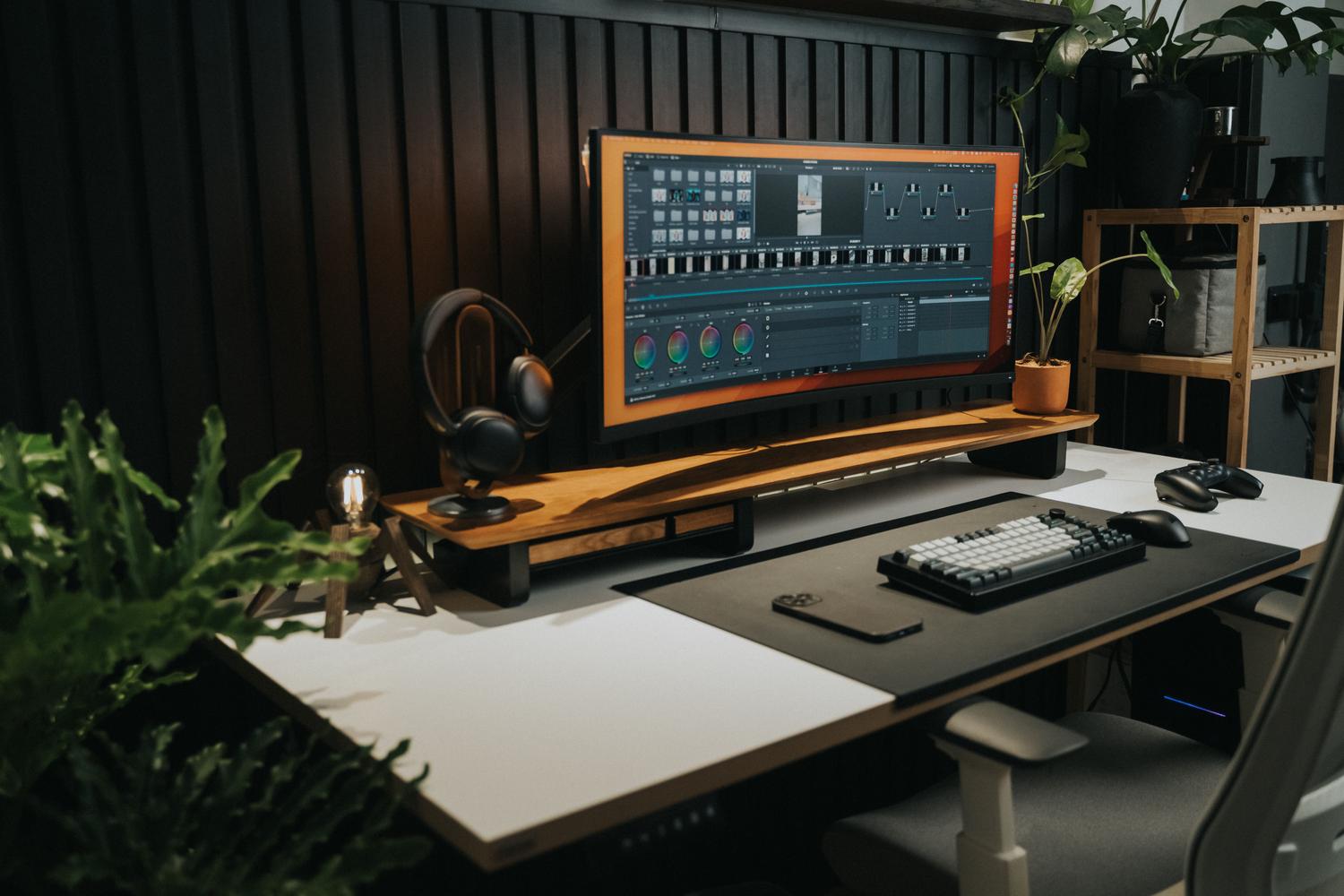
On the other hand, we have ultrawide monitors (21:9 or 32:9). These are basically like having two monitors side by side. They're fantastic for immersive simulators or for having multiple windows open at once, although you need to check that the games and programs you use support this extended format to avoid ending up with black bars on the sides.
Factors that affect quality beyond pixels
Don't rely solely on resolution; the panel type is crucial. A 4K monitor with a TN panel will look worse than a 1080p monitor with an OLED panel. IPS panels are the standard for design due to their vibrant colors and wide viewing angles, while VA panels offer better contrast. OLED, on the other hand, is the undisputed king, as each pixel is completely turned off, achieving perfect blacks.
Don't forget brightness (measured in nits), HDR support for highlighting highlights and shadows, and the screen coating. A matte finish prevents reflections, but it can sometimes reduce sharpness slightly compared to glossy glass.
How to choose according to your use and hardware
If your priority is competitive gaming (shooters, esports), sticking with a 24-inch 1080p monitor is ideal to prioritize speed and FPS. If you're looking for a balanced experience for all aspects, a 27-inch 1440p monitor is the safest bet. For those who prioritize extreme visual quality, consume 4K media, or work in video editing, a 32-inch 4K monitor is the best option, provided they have a high-end GPU capable of handling such a high pixel count.
Viewing distance also matters. If you sit far away, the pixels on a 1080p monitor disappear beyond 110 cm. In contrast, with a 4K monitor, you can be as close as 60 cm and still see a perfectly smooth and sharp image without noticing any pixelation.
The final choice depends on whether you value smooth frame rates or crystal-clear text and images, always bearing in mind that higher resolution and pixel density drastically increase the strain on the hardware, and you'll likely need to adjust system scaling to maintain visual comfort.