- Prioritize FPS stability over extreme visual detail to avoid stuttering in cities.
- Adjust the FOV below 55 to achieve a more realistic perspective of the environment and vehicles.
- Optimize mirrors and shadows as a first step to gain performance without losing sharpness.
- Calibrate the sensitivity and dead zone of the controller or steering wheel to avoid abrupt corrections while driving.
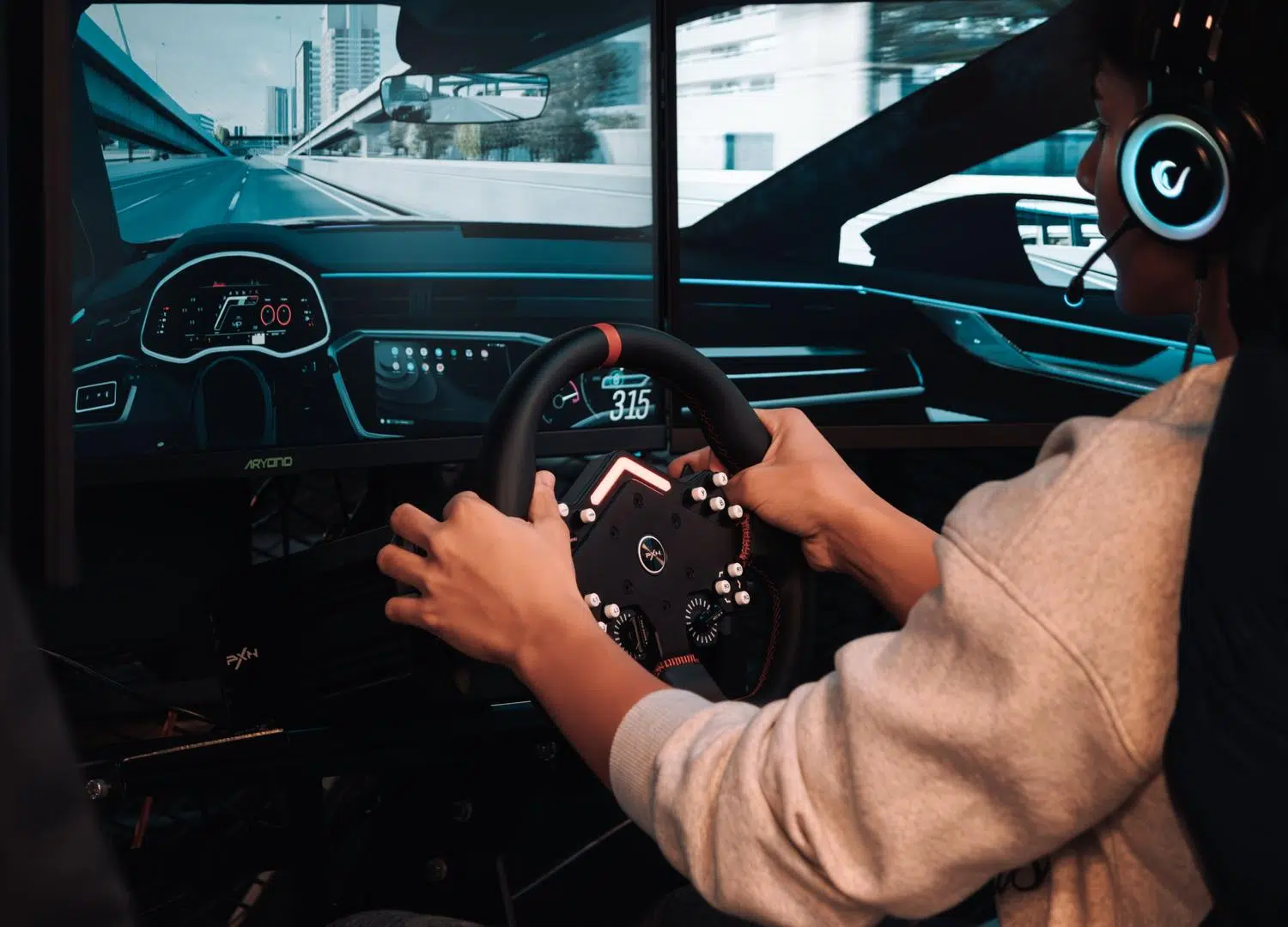
If you love driving on European roads but feel your game isn't looking its best or that frame rate drops are ruining the experience, you've come to the right place. Making Euro Truck Simulator 2 look spectacular without your PC exploding is an art, as the balance between visual detail and smoothness is key to avoiding complete frustration in the middle of a crucial match.
It's not just about cranking everything up to ultra and hoping it works; it's about knowing where to cut corners and where to invest in graphics power. From intricate field-of-view (FOV) adjustments to intelligent mirror management, we'll break down how to fine-tune the simulator so you can enjoy every kilometer with the highest possible quality for your setup.

Advanced perspective and FOV tricks
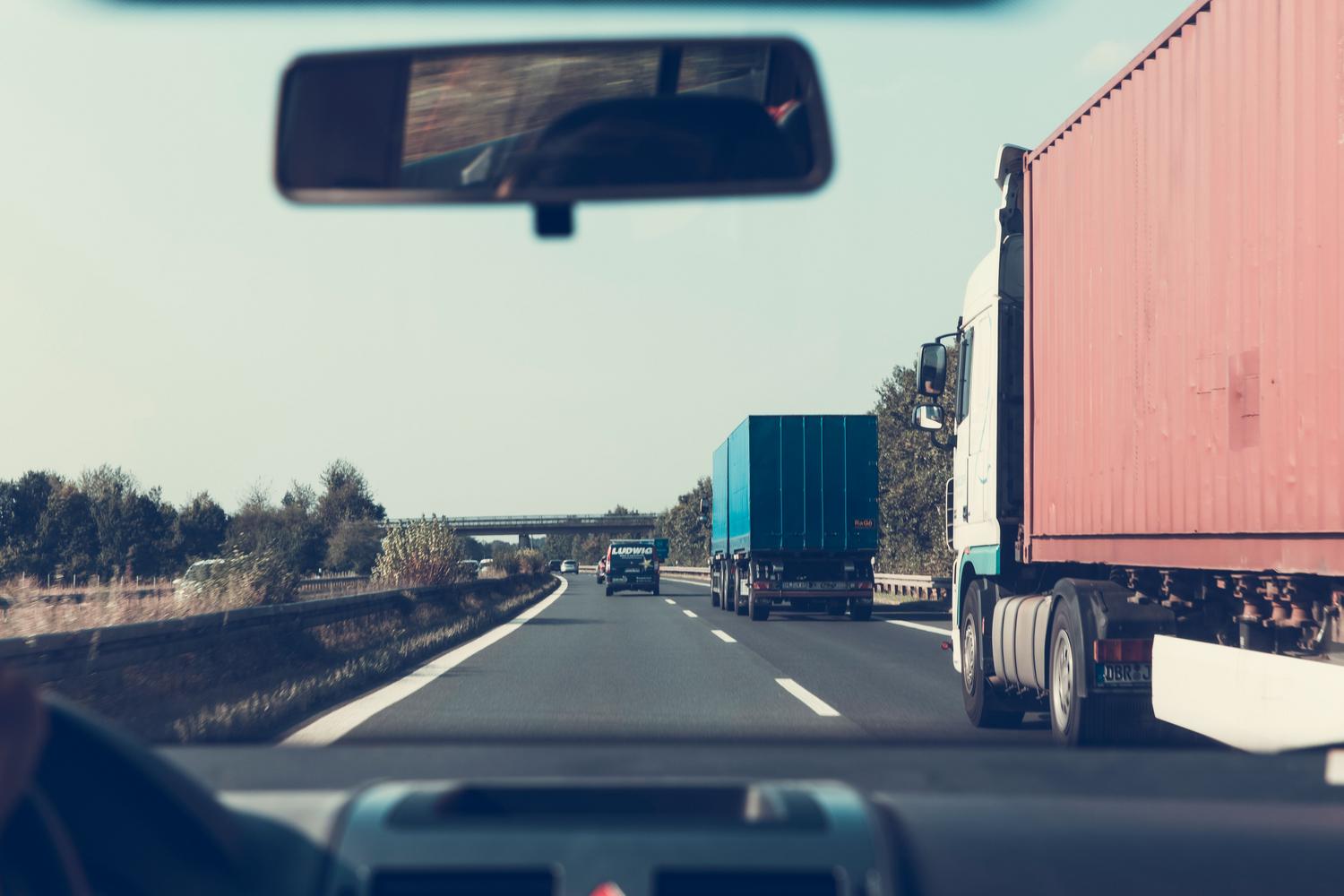
For those seeking a more immersive and realistic driving experience, there's a little secret that completely changes your perception of the world. If you try reducing the field of view (FOV) below 55 , you'll notice the game's scale transforms. By making this adjustment, the roads appear wider and the AI vehicles take on a much more imposing presence, eliminating that "small world" feeling some players experience at first.
Graphics priorities for stable performance
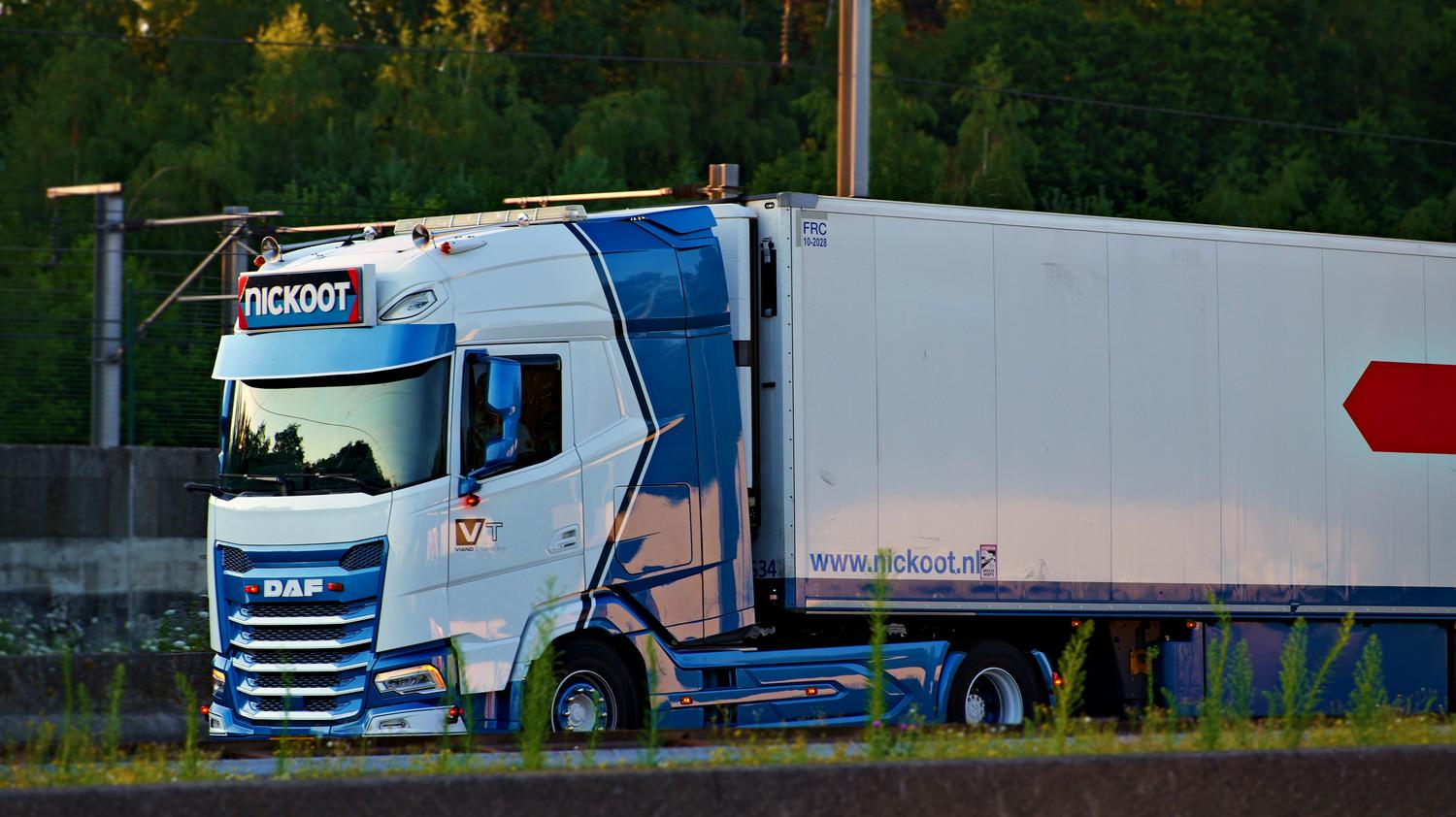
Before you max out all the settings, the smartest thing to do is stabilize your frames per second (FPS) . It's much better to have a sharp image and consistent handling than to suffer performance spikes that disappear as soon as you leave the city. If you notice the game struggling, the first thing to do is keep your monitor's native resolution and start reducing shadows or mirror quality, as these are the settings that consume the most resources in urban areas.
- Textures: Keep them up as long as your graphics card has enough VRAM; they're what give sharpness to the truck and the asphalt.
- Shades: A medium setting is usually sufficient. The ultra setting is great for taking a photo, but on a long ride it offers almost no benefit and consumes too much battery.
- Mirrors: If the game stutters when maneuvering in a tank or roundabout, lower this parameter to medium or low.
- Climate and Effects: Adjust them according to how smooth the performance is, but don't touch the resolution until you've lowered everything else.
Configuration according to your hardware
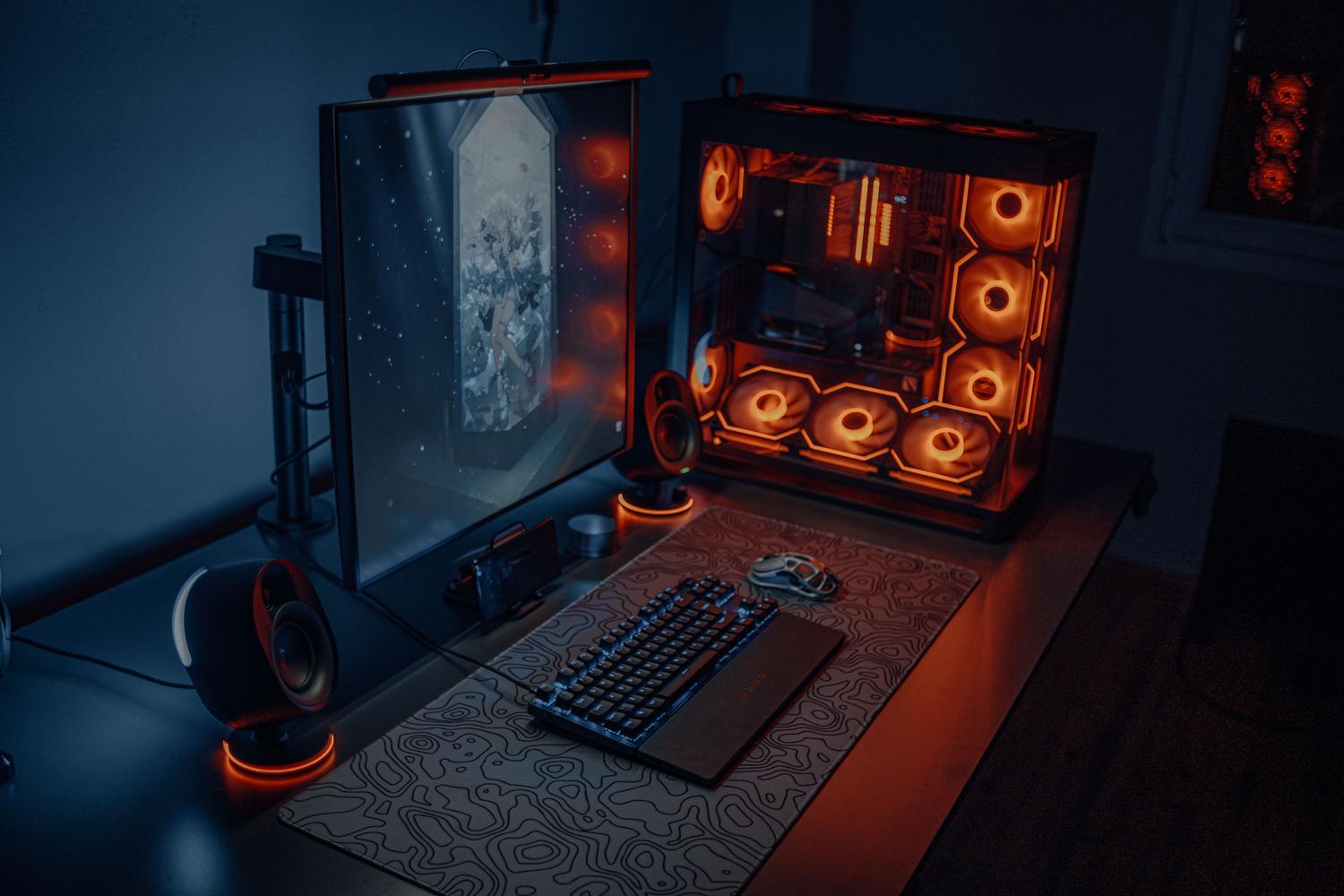
Playing on a gaming PC is not the same as playing on a Steam Deck or a laptop. For example, on a modern rig at 1080p , you can expect a stable 60 FPS with high texture settings, always keeping an eye on the mirrors to prevent them from significantly impacting performance in cities. If you're using a Steam Deck or a laptop , it's best to limit the FPS to 40 or 45 to prevent overheating and excessive battery drain.
For those using ultrawide screens, resolution should be the priority. In these cases, maintaining the native resolution is crucial to prevent the dashboard instruments and rearview mirrors from appearing blurry, which would be incredibly frustrating when trying to park a trailer precisely.
Optimization of the controls and steering wheel
It's no use having a visually stunning game if the truck handles like it's made of rubber. Configuring your controller before hitting the road is crucial . If you're using a gamepad, be careful with the sensitivity; if it's too high, even the slightest correction will result in dangerous swerving. In this case, adding a minimal dead zone can prevent the truck from drifting on its own.
With a steering wheel, the process is more meticulous. We recommend adjusting only one parameter at a time (such as linearity or rotation) and testing it on a short drive. Only then will you know exactly which setting makes the steering feel more natural and require fewer constant corrections.
Real-time testing methodology
To determine if your settings are correct, don't just stay in the garage. You need to take a real-world route that includes a city, a complex road, and a highway . If you notice the frame rate dropping at a specific point, simply reduce the mirrors or shadows and repeat the route. This is the only way to find the most stable profile for your specific hardware, avoiding copying third-party configuration files that could misconfigure your camera or controls.
If the game won't start or the image is corrupted, remember that there's a safe mode that resets everything to the minimum settings. From there, you can manually increase the parameters in the advanced settings. Also, if you have a laptop with two graphics cards, make sure to force the use of the more powerful GPU to prevent the game from using the integrated one and running poorly.
To get the most out of Euro Truck Simulator 2, it's best to prioritize stable FPS and native resolution, adjusting mirrors and shadows according to your hardware. Combining good visual settings with precise steering calibration and an optimized FOV ensures a smooth, realistic, and visually appealing driving experience on any platform.